
Latest update February 2026 - v.4.78.0
Curated Lists are a powerful way to structure, share, and showcase the most relevant parts of your innovation ecosystem. Whether you're preparing for an event, reporting on internal activities, or collaborating with stakeholders, lists help you organize your content into meaningful, action-ready views.
What is it?
Context
Managing an innovation portfolio often involves multiple layers of data: projects, startups, partners, workflows, and more. Until now, creating focused, shareable views of this content required duplicating effort, manually updating dashboards, or exporting data into spreadsheets. This slowed down collaboration, limited visibility, and reduced engagement.
Definition
Curated Lists are customizable collections of elements (e.g., partners, startups, projects) that can be either manually built or dynamically generated based on rules. They allow you to combine partner and workflow information in a single view, helping teams track both collaboration context and operational progress without switching between multiple tools. They live within a dedicated section of the platform and are designed to be shared, presented, and reused across teams.
Value
Curated Lists can help for several tasks, such as:
- Ecosystem mapping: map your innovation ecosystem by strategic themes in order to share them within your organisation.
- Weekly reviews: track innovation workflows, align with business units during weekly meetings, and keep project status up-to-date.
- Event preparation: select and prepare startups for trade shows, learning expeditions, or executive visits.
- Internal reporting: build real-time dashboards for management reviews.
By centralizing this functionality within Bloomflow, users save time, improve clarity, and increase platform adoption across departments.
How does it work?
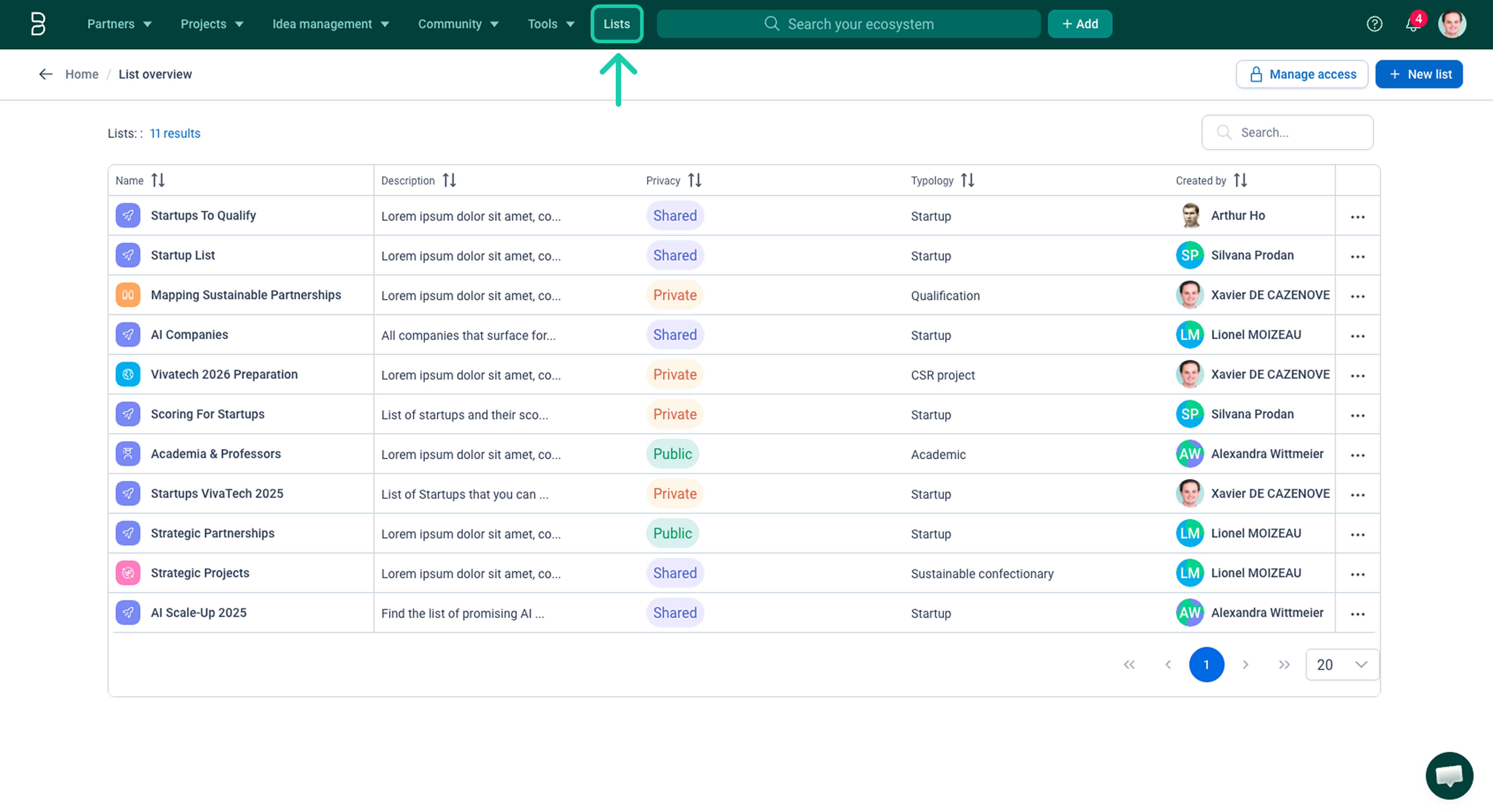
1. List Overview
All lists are accessible from the "Lists" button in your navigation bar. This interface shows all lists you have access to (Private, Shared, or Public).
It allows you to:
- Create a new list >
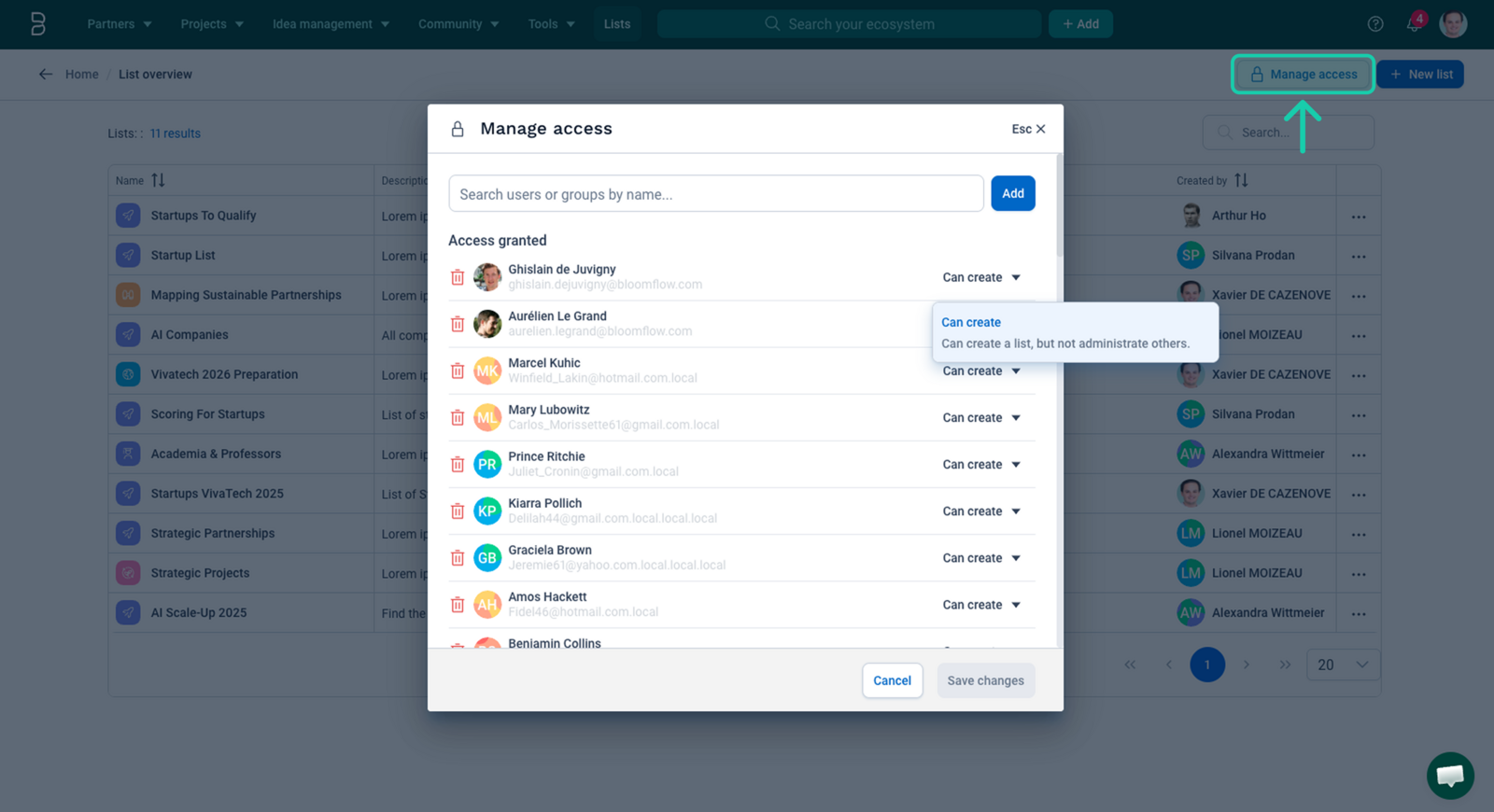
+ New list - Manage who can create a List >
Manage access - Search lists by name or creator to quickly find what you need
- Sort lists to better organize your workspace
2. Creating a List
Platform admins can configure who can create lists within the organization (e.g., Platform Admins only, or specific user roles). This ensures control over list governance while empowering collaboration.
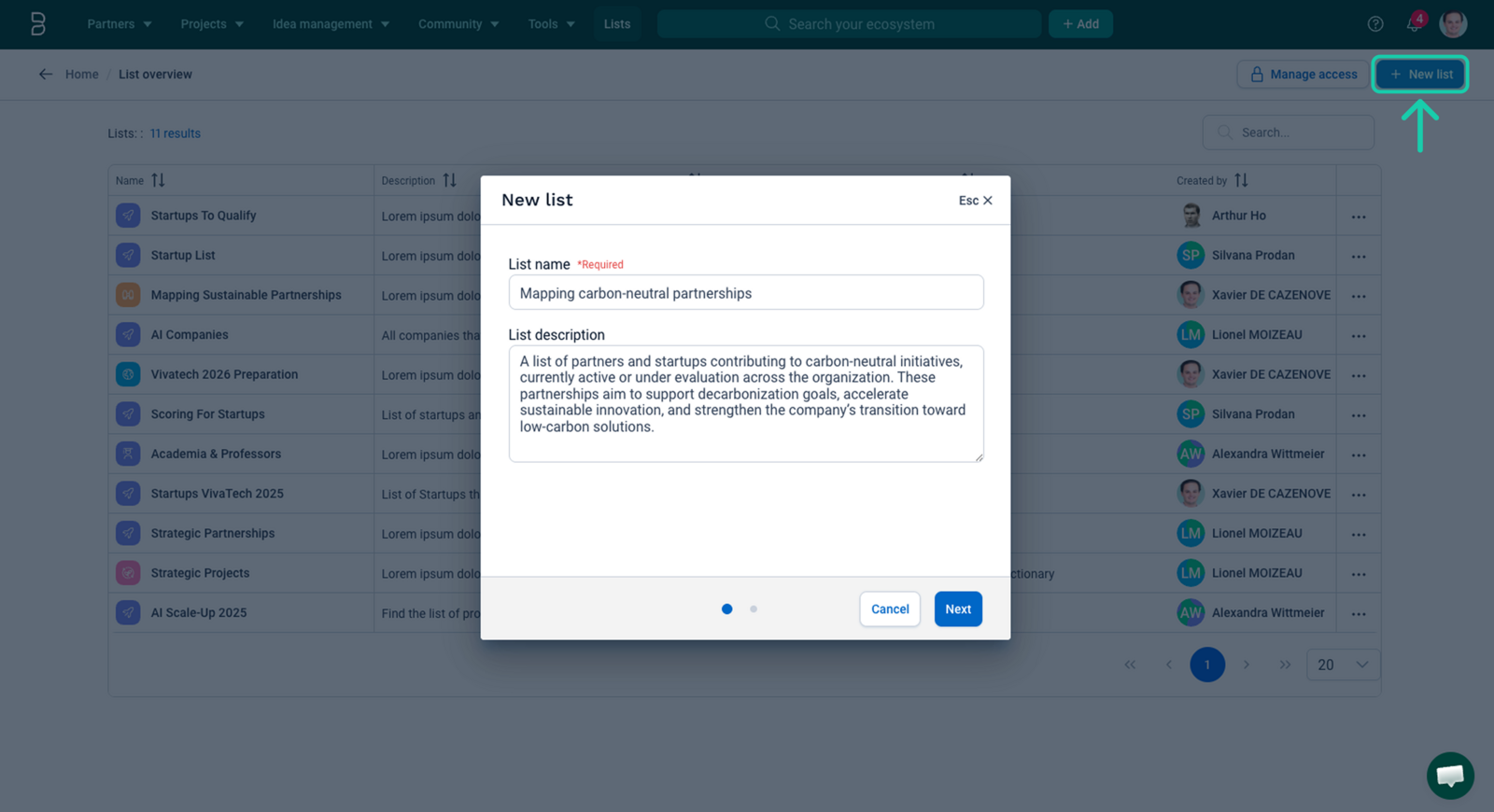
To create a list, you need to:
- Click on the
+ New listbutton - Enter its name and description
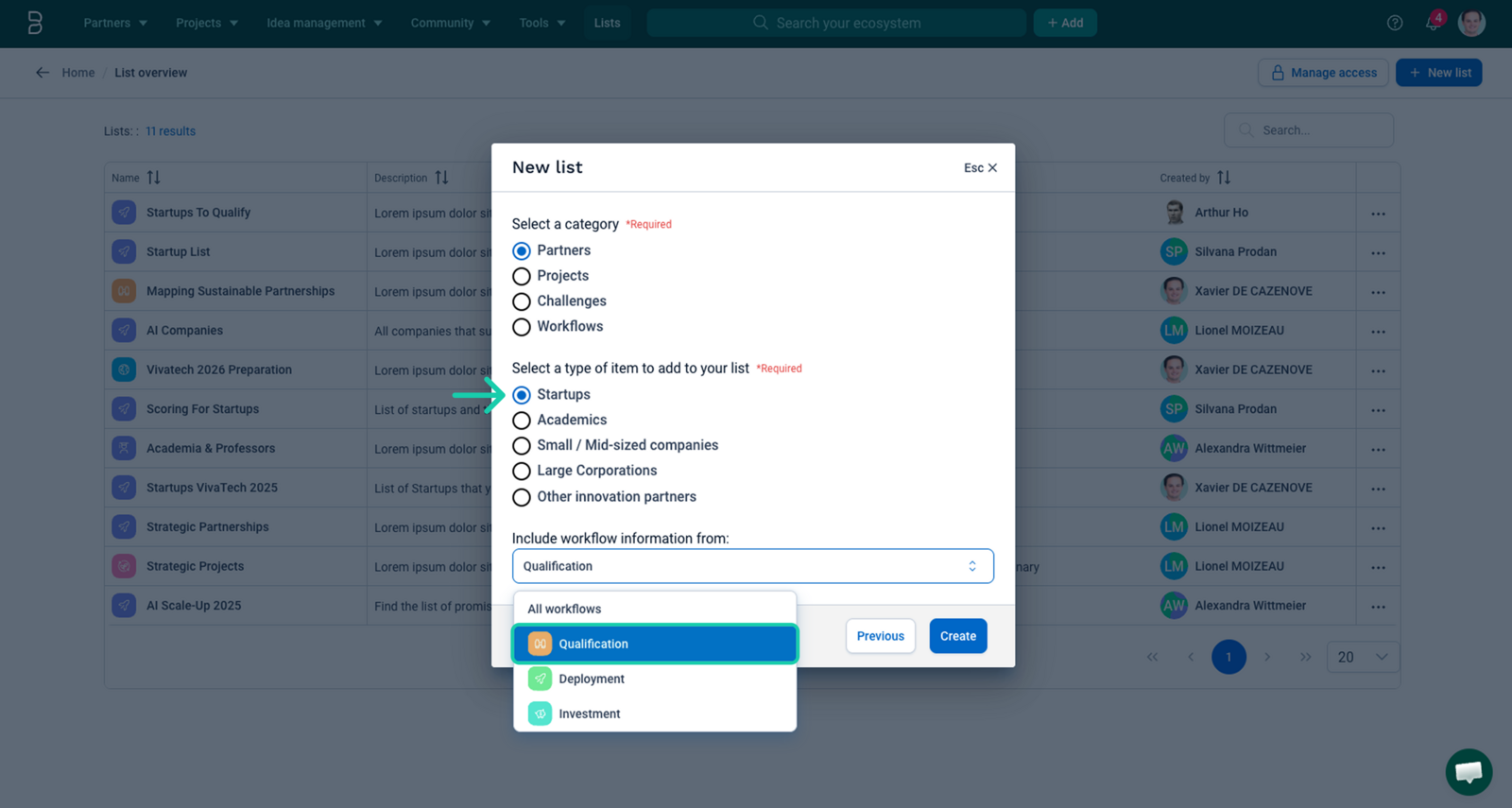
- Select the partner type and workflow template to define the context of your list. (this ensures your list combines both partner-level and workflow-level information in a single, consistent view)
Now that your list is created, you can start filling in your list by clicking on the Edit selection button.
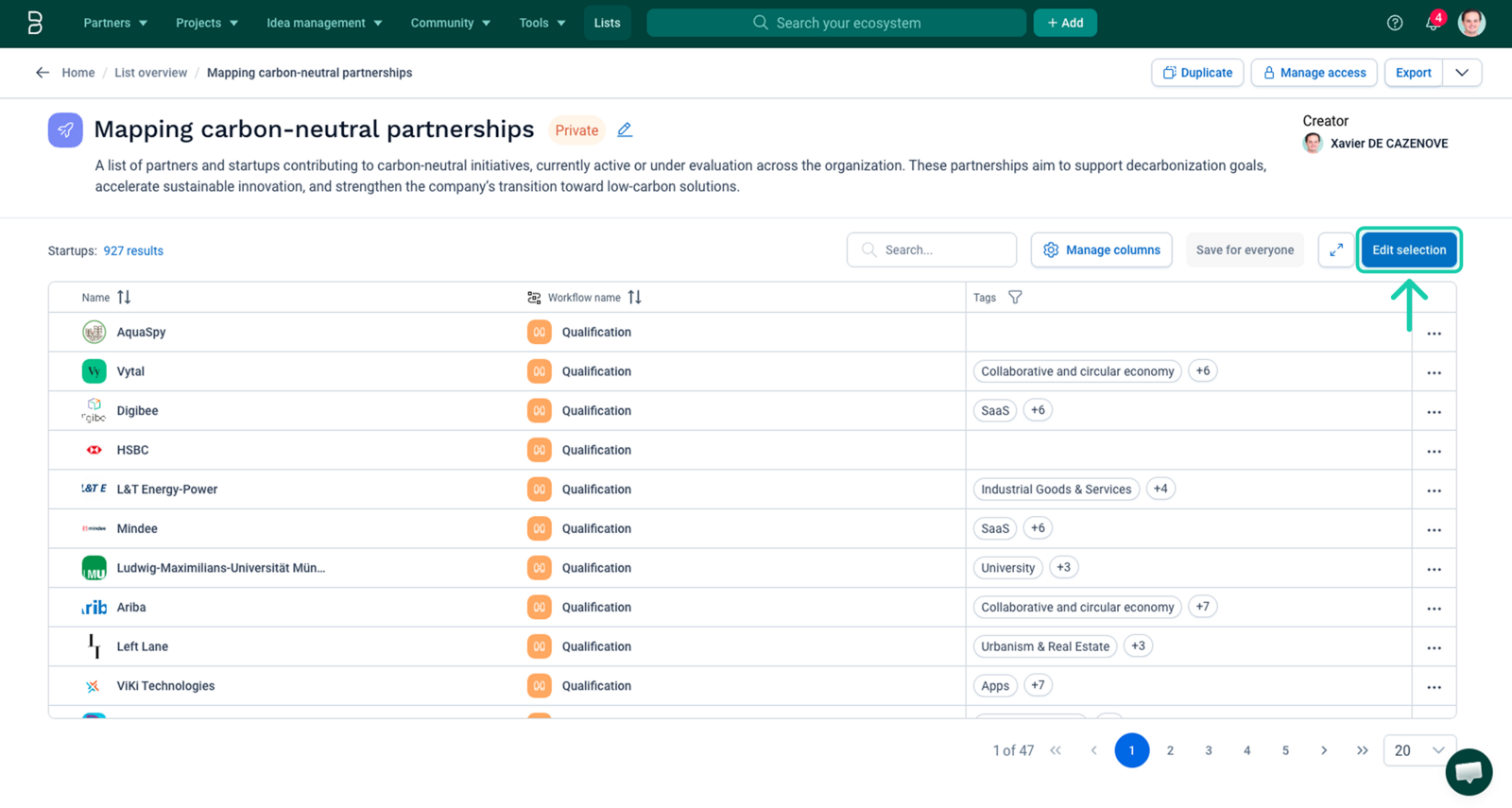
You’ll have to choose between two modes to add new items:
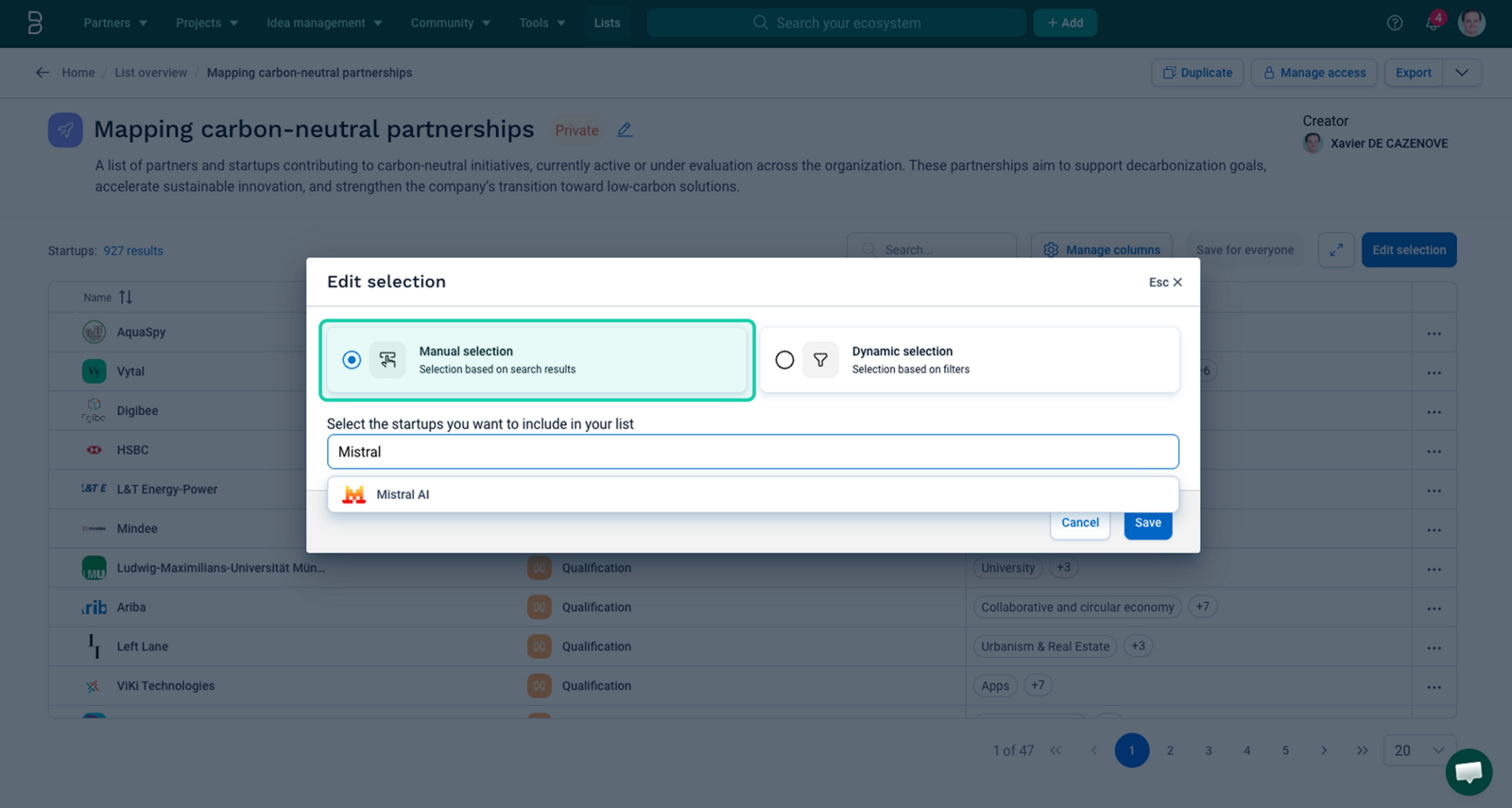
Manual List
- By selecting the
Manual selectionoption you can add individual elements one by one (e.g., specific startups or projects)
💡 Perfect for curated selections, event prep, or tailored presentations
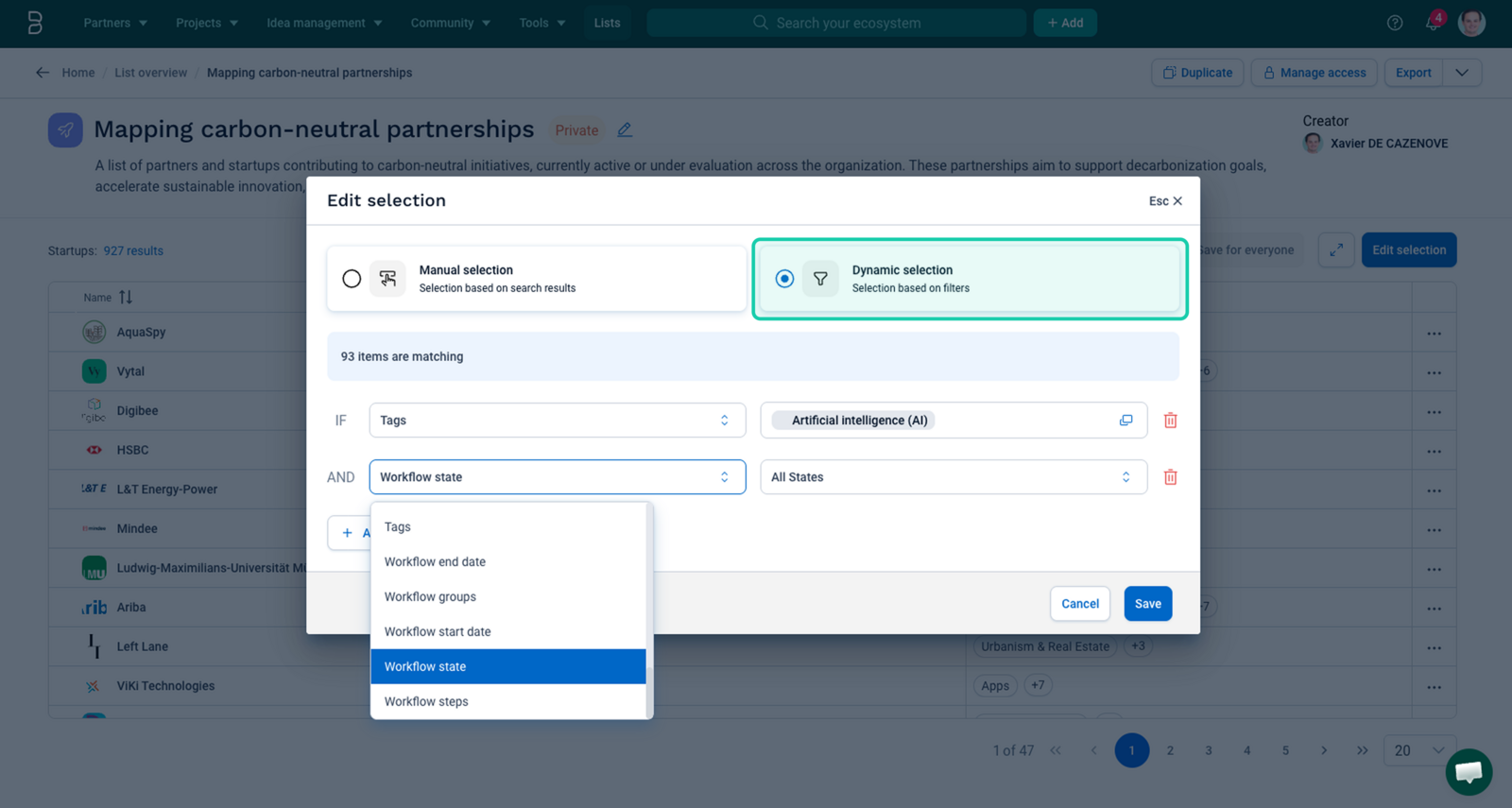
Dynamic List
- By selecting the
Dynamic selectionoption you can define rules to automatically populate the list based on filters (e.g., Group = Innovation Team, Tag = "Sustainability")
💡 The list updates in real time as content in your platform evolves
3. Configuring your list
Once the list is created, you can:
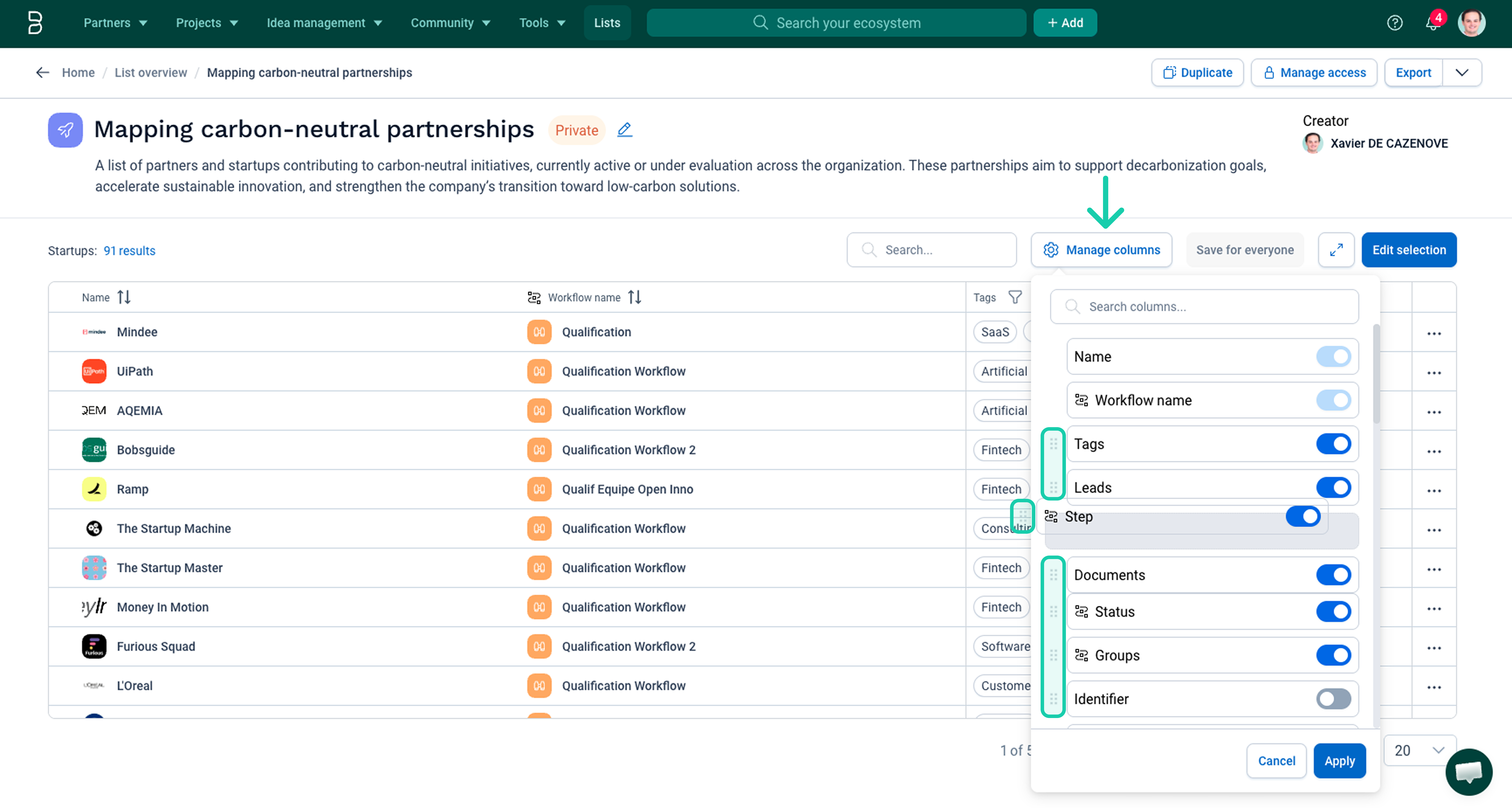
- Search and select the fields you want to display as columns (including text, status, numeric values, etc.) by clicking on the
Manage columnsbutton, and switch **ON or OFF each field.
💡 Workflow fields will appear with a small ‘workflow’ icon next to them.
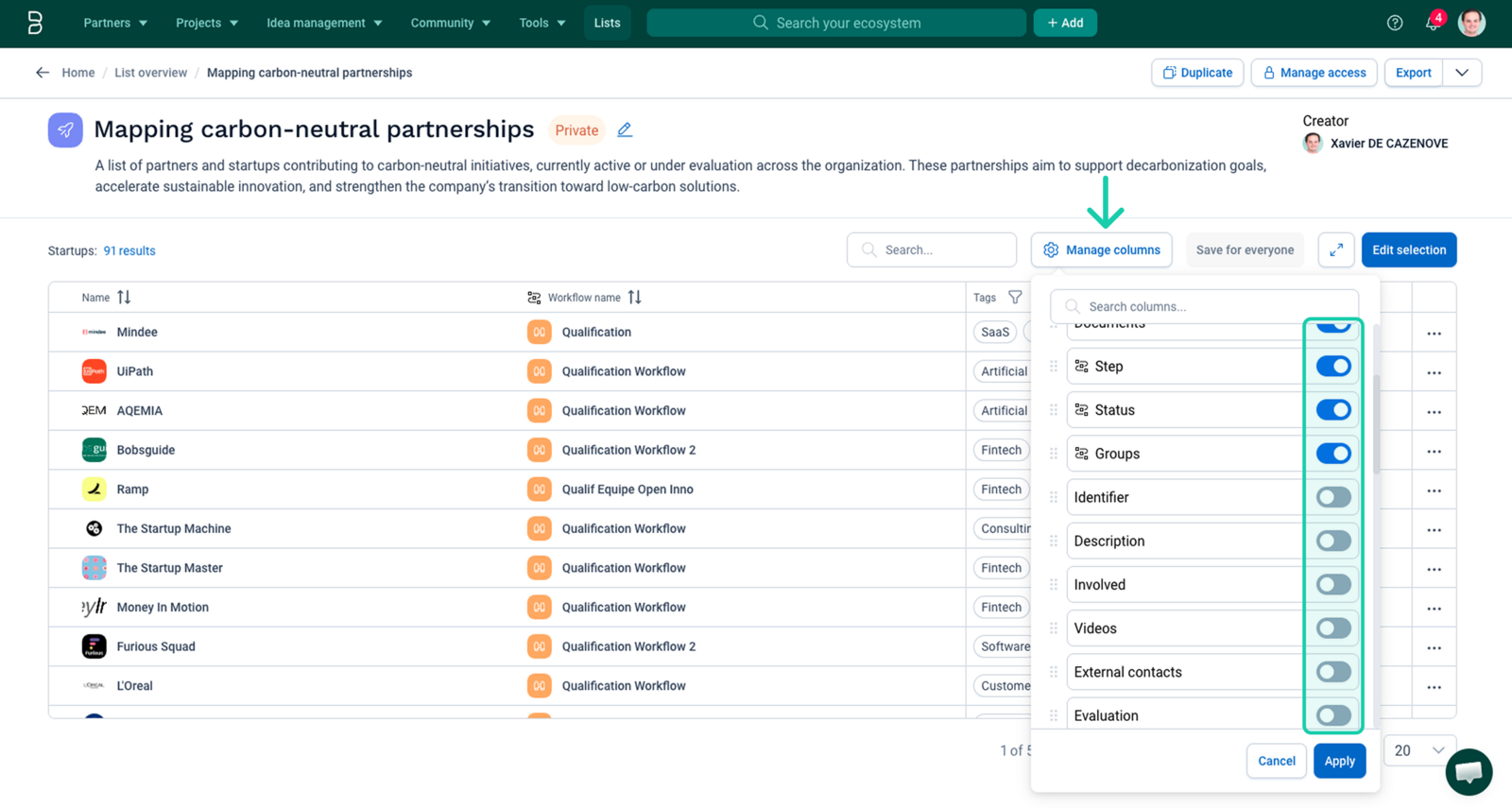
- Reorder columns by drag & drop them from the
Manage columnspanel
4. Saving your configuration
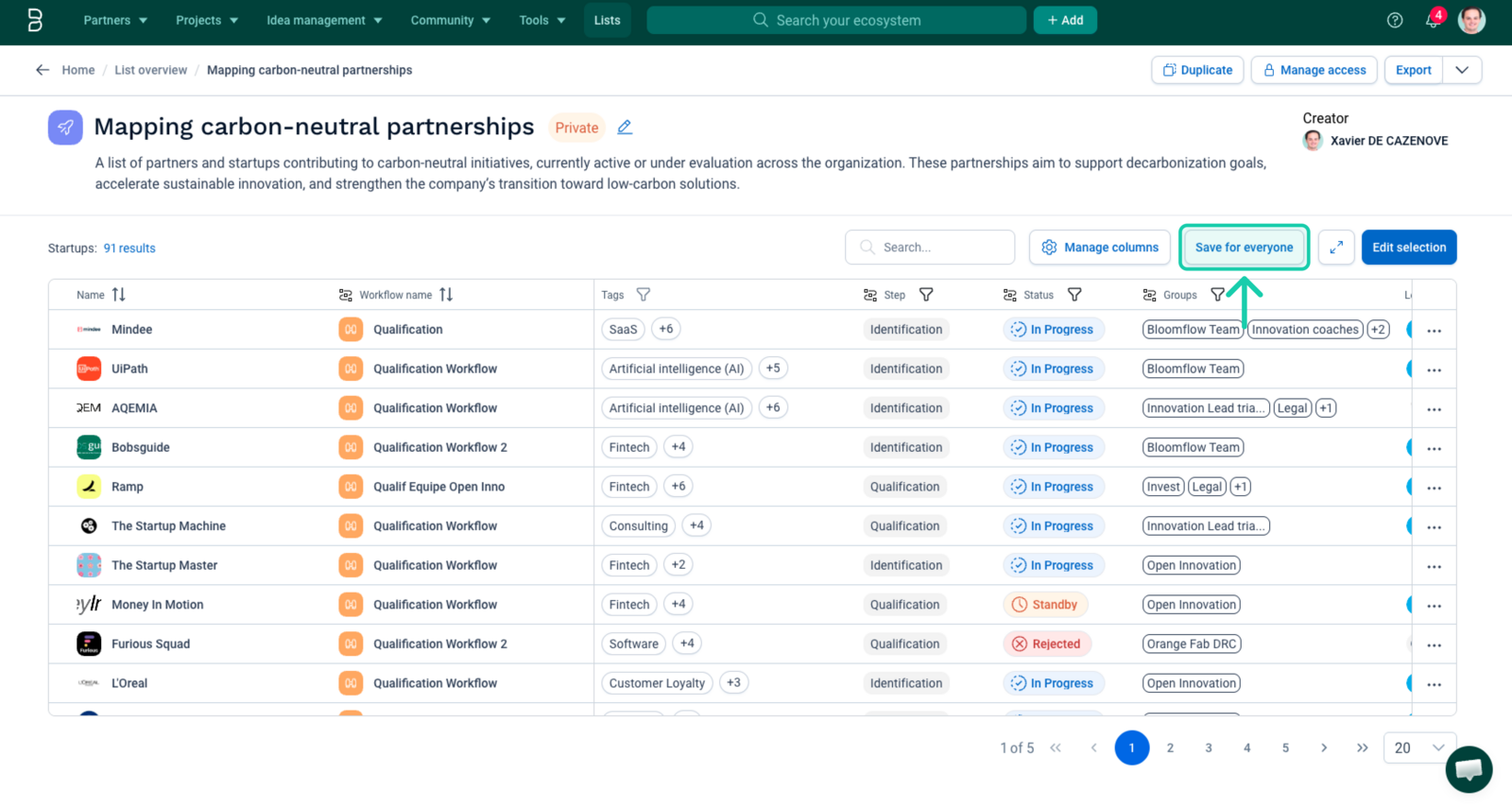
Each list's table can be customized and saved to retain your preferred layout. Once you've selected and arranged the columns, simply click on "Save for everyone" to make this your default view for that list.
💡This ensures that when you or your collaborators return to the list, you always see the most relevant information, structured your way.
5. Visibility and permissions
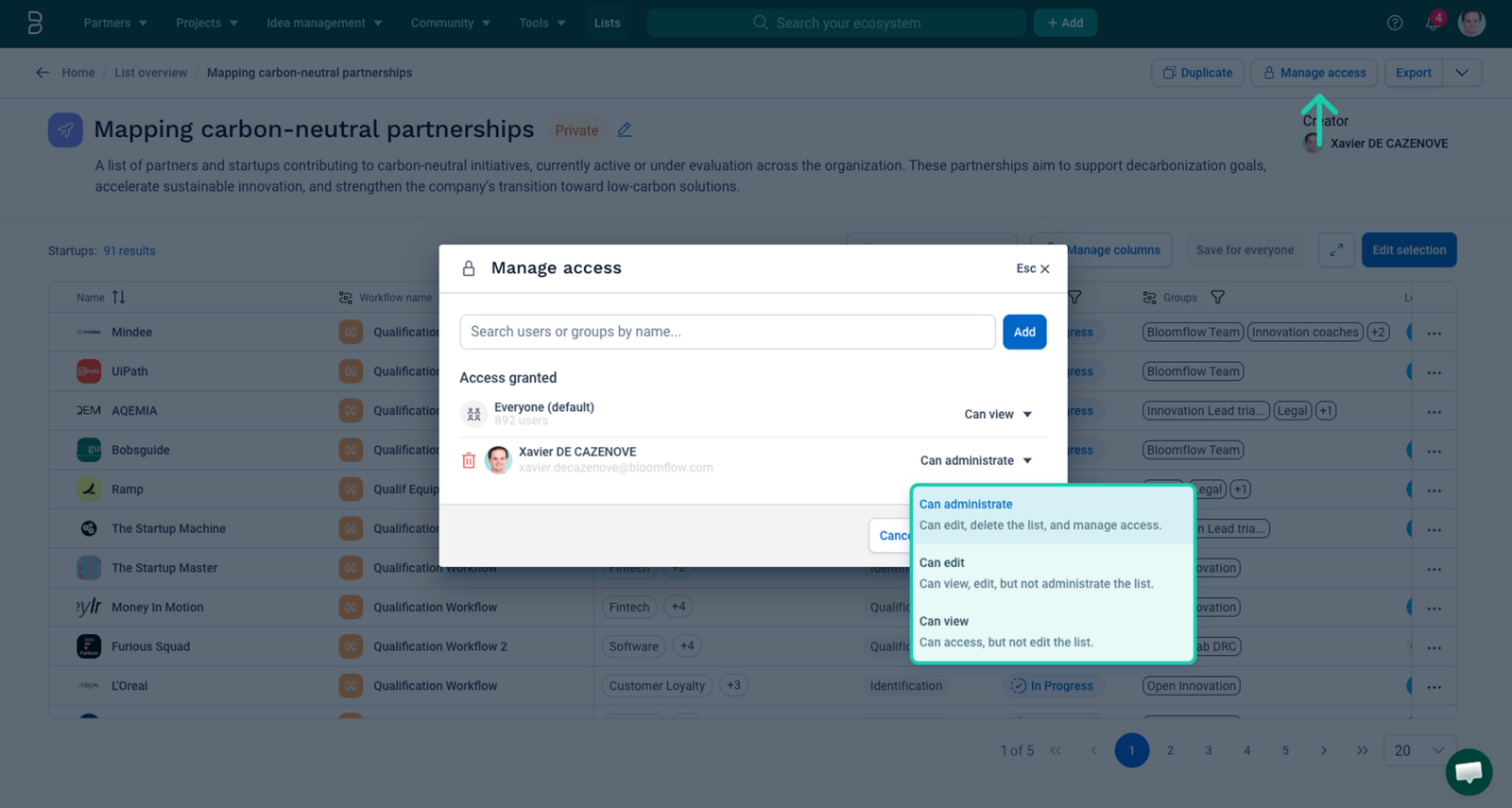
You can update the visibility of your List at any time from the Manage access button of the List page.
From this view, you can grant access to specific users or user groups with different level of permissions.
Roles | Permissions |
|---|---|
Can administrate | In addition to |
Can edit | In addition to |
Can view | Can view the list from the list overview page, can manage columns and use filters |
Each list will inherit a privacy status according to the accesses applied to it:
- Private: visible only to you - you are the only one with a role on this list
- Shared: visible only to selected users or groups, you and other users or groups have a role on this list
- Public: visible to all users on the platform - if there is a default access with view permissions on this list
By default the platform administrators can see all the lists of your platform.
6. Manipulating your list
- Filter and sort content within the list using the little icons next to each column header
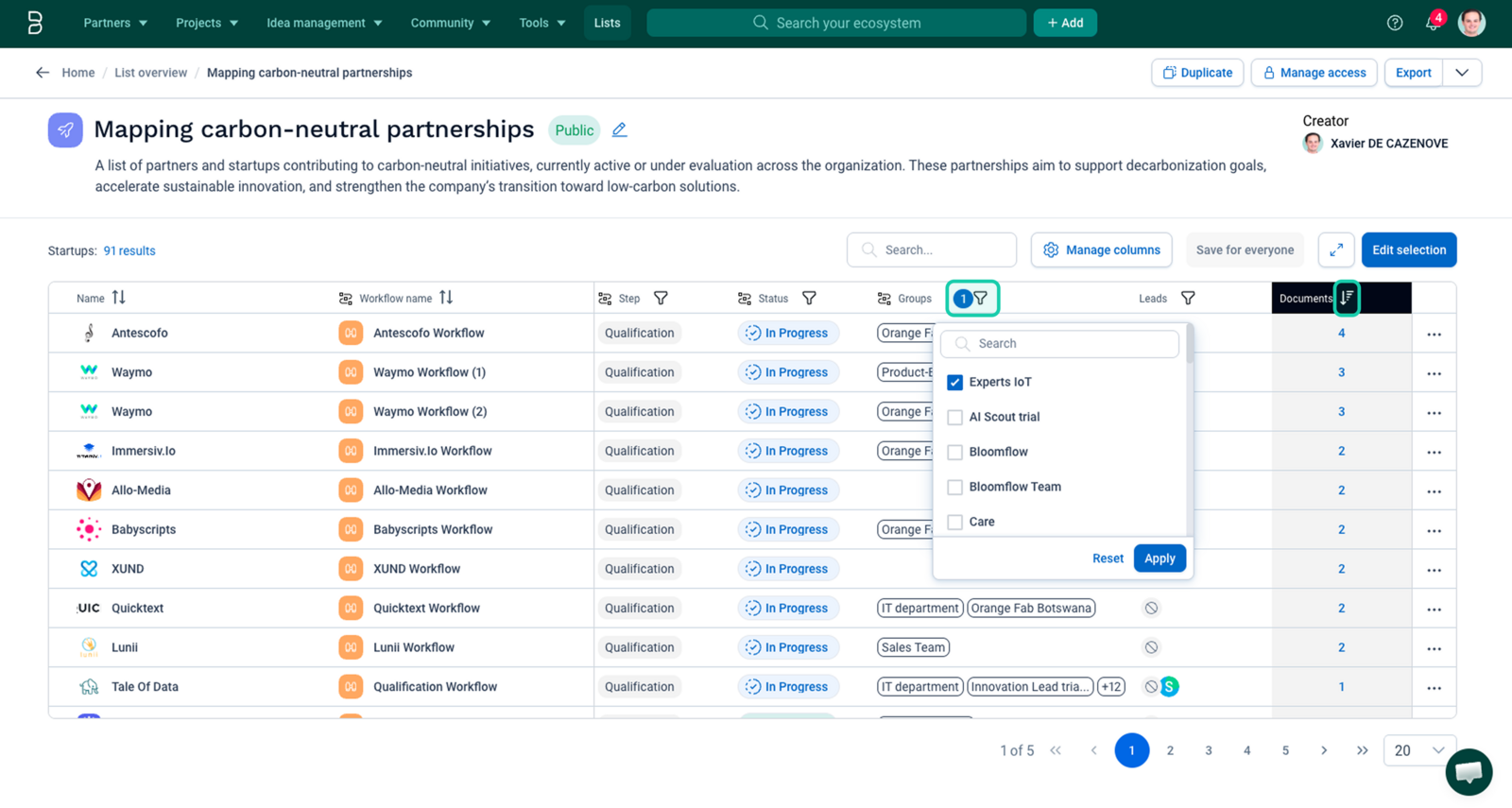
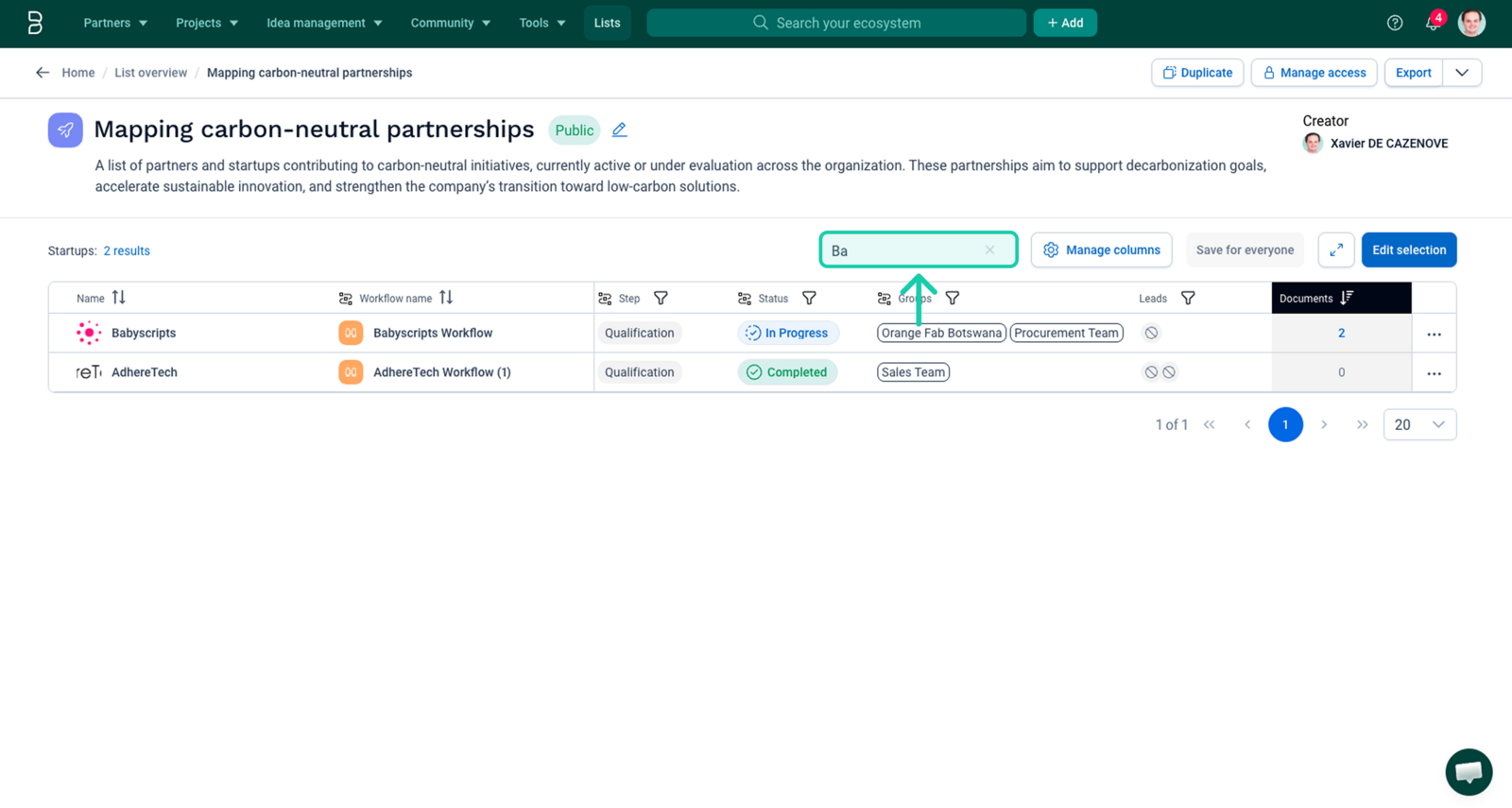
- Use the search bar to search for specific items within your list based on keywords
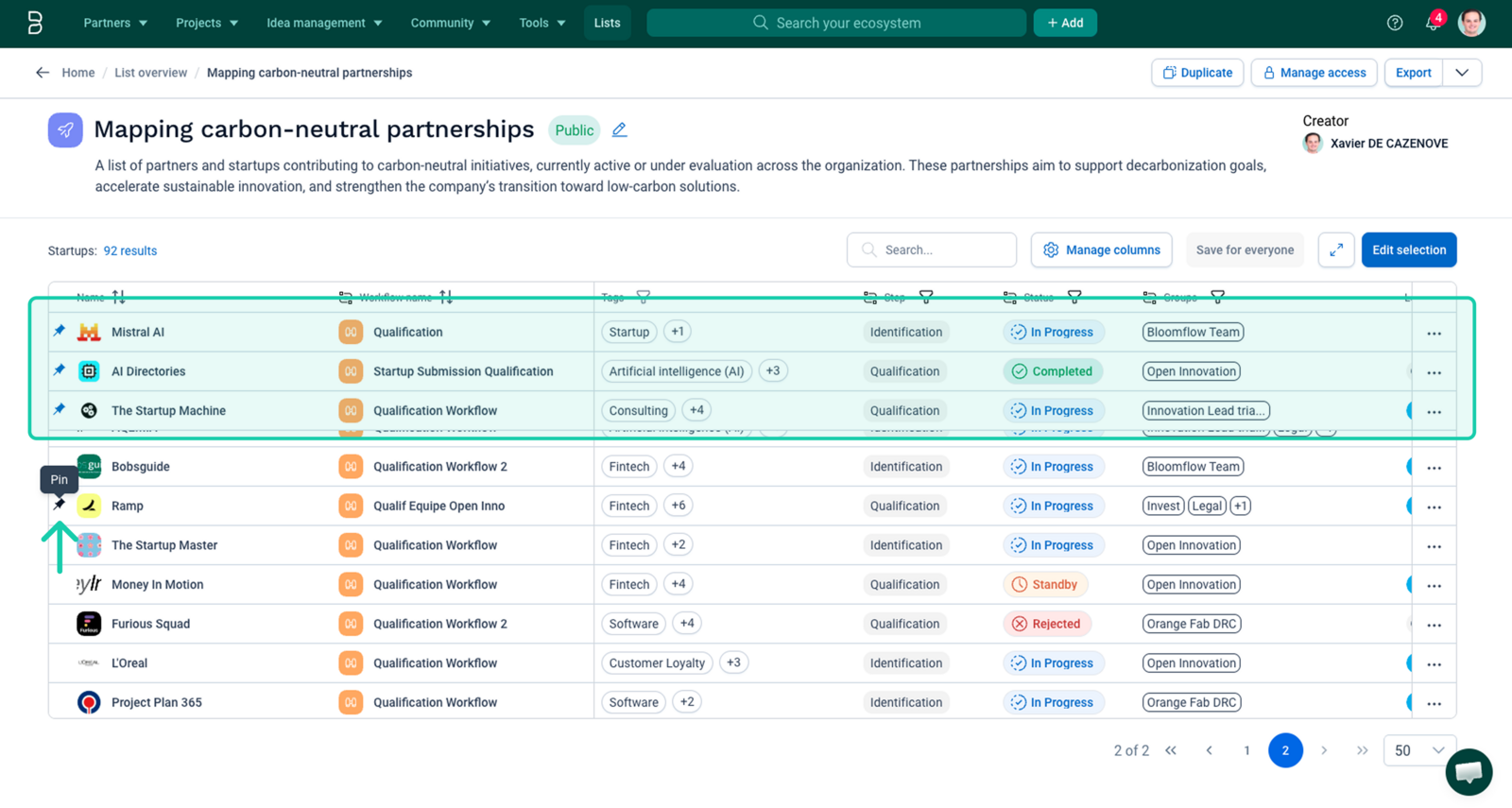
- Pin key partners at the top of your list for faster access and better visibility during reviews, executive meetings, or operational follow-ups.
💡The action of pinning items to the top of the list cannot be saved for other users.
7. Exporting data
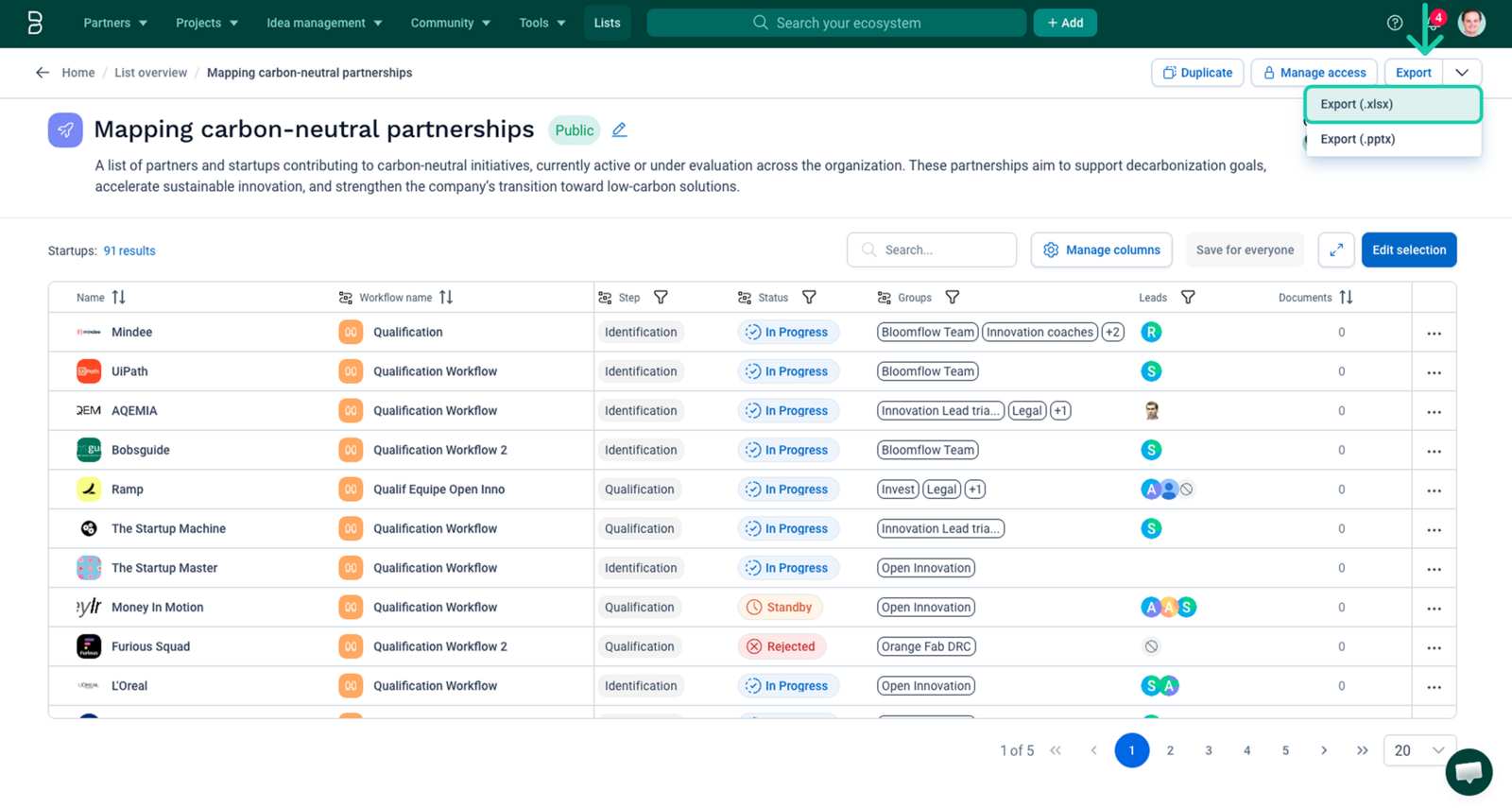
Export CSV
You can export any list to .xlsx file. The exported file will include:
- Only the columns currently displayed in your table
- Formatted values (e.g., "Parent Tag > Subtag")
Export PPT
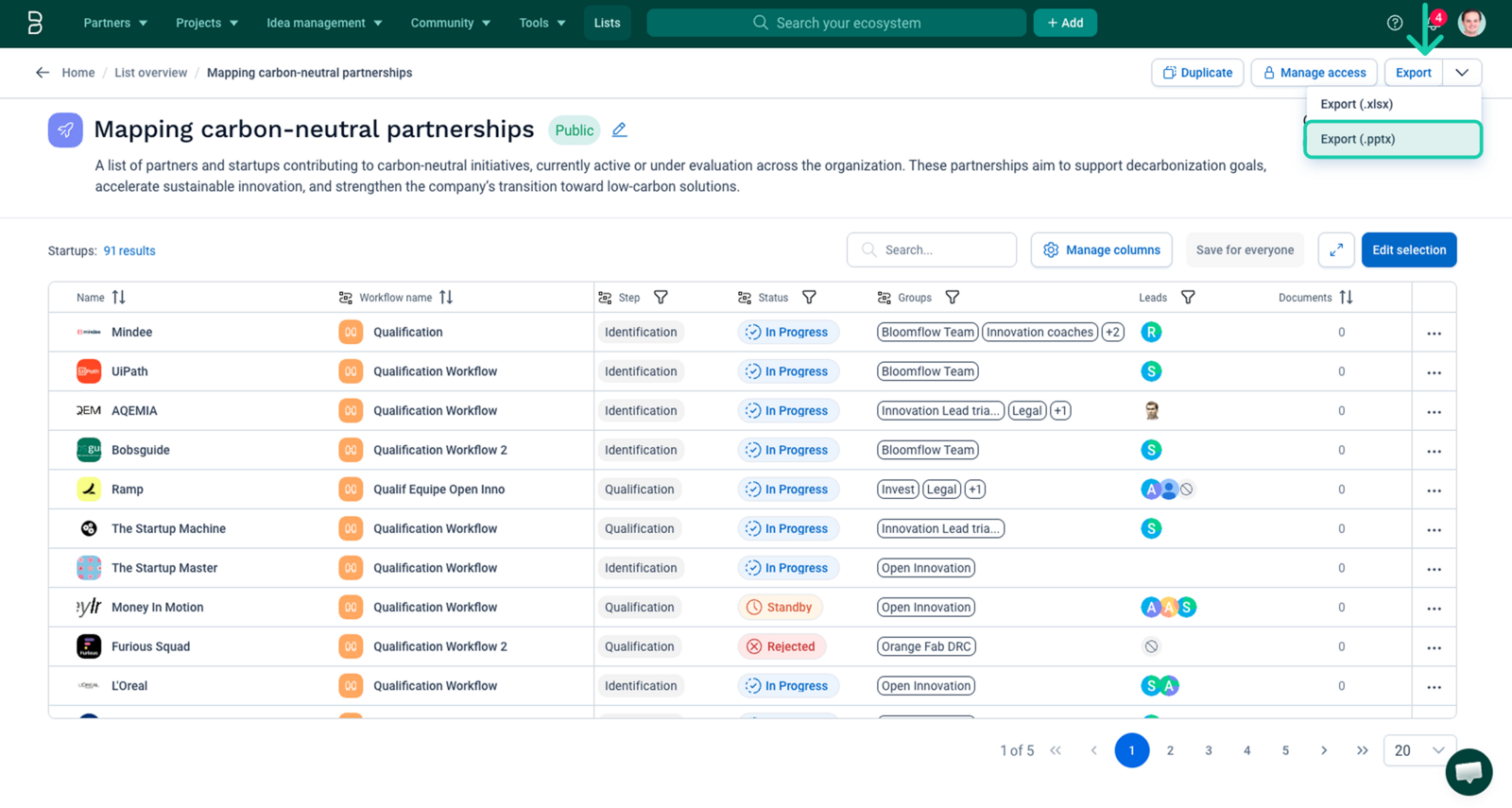
You can export any list to .pptx format. According to the One-pager template defined for the typology of items that you have in your list, the exported file will include:
- 1 slide per item
- with the content defined in the template
FAQs
Q: Can I convert a manual list into a dynamic list?
A: Not directly, but you can recreate it using similar filters in dynamic mode.
Q: Can I combine partner and workflow information in one list?
A: Yes. When creating a list, you can select a workflow template to include operational data alongside partner information.
Q: Will dynamic lists update automatically?
A: Yes, they refresh in real-time based on the platform's data.
Q: What happens if I lose access to a shared list?
A: You’ll no longer see it in your List overview unless visibility is restored by the owner.
Q: Are deleted items removed from lists?
A: Yes, if an item is deleted from the platform, it disappears from any list it was part of.
Q: Can I duplicate an existing list?
A: Yes, a list can be duplicated directly using the “Duplicate” button in the top-right corner of the screen.
If you have further questions or want help setting up your lists, reach out to your Bloomflow Customer Success contact!
Comments
0 comments
Please sign in to leave a comment.