
Last updated February 2025
Manage access on
Portfolios
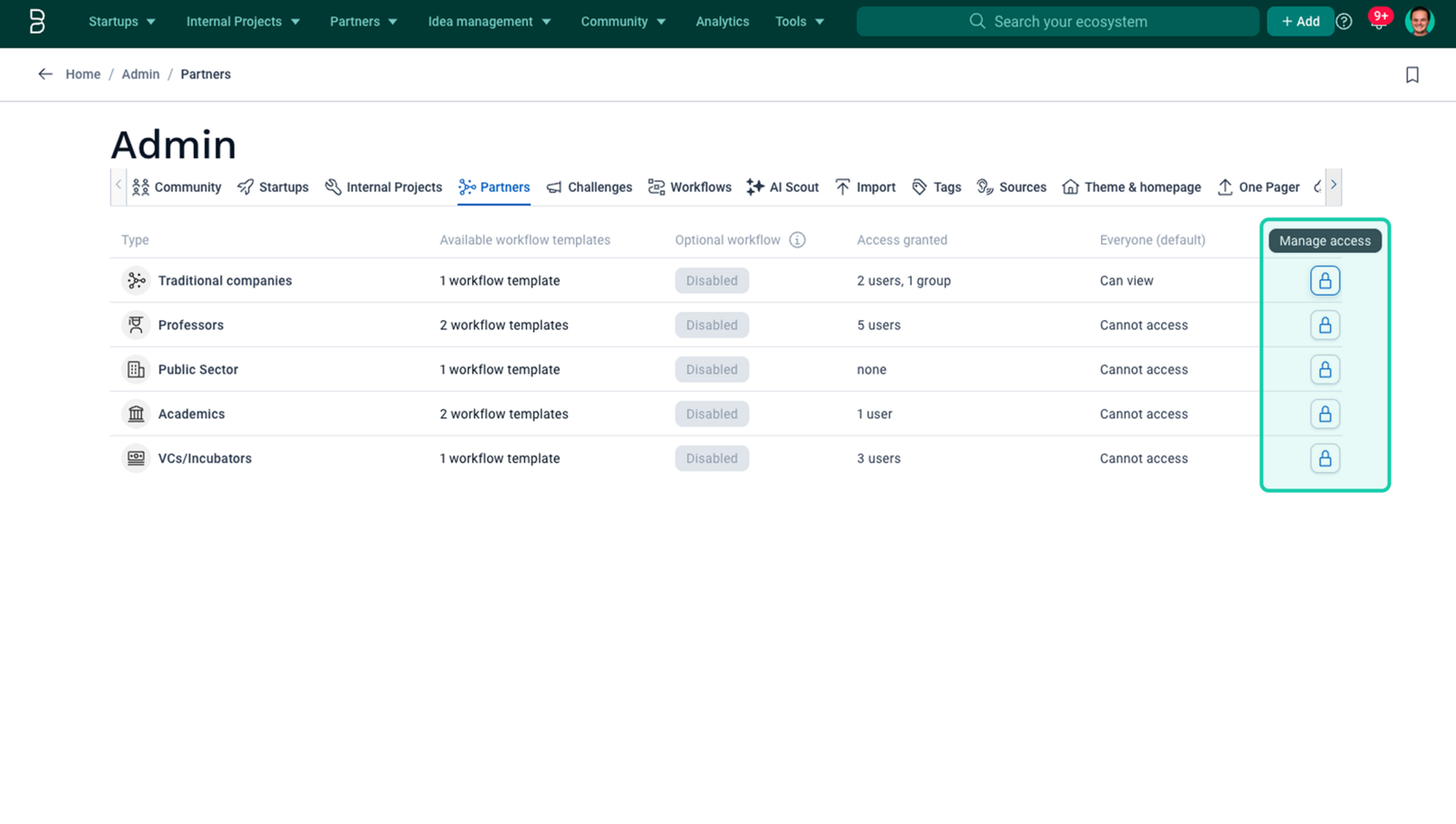
For any type of portfolio on your platform, a Platform Administrator or a Portfolio Administrator can manage access for each user or group and give them specific roles.
To manage the rights and permissions of a portfolio, you can go to the Admin Panel > Tab [name of the portfolio’s folder] > Click on the portfolio •••, then click on Manage Access.
A specific page
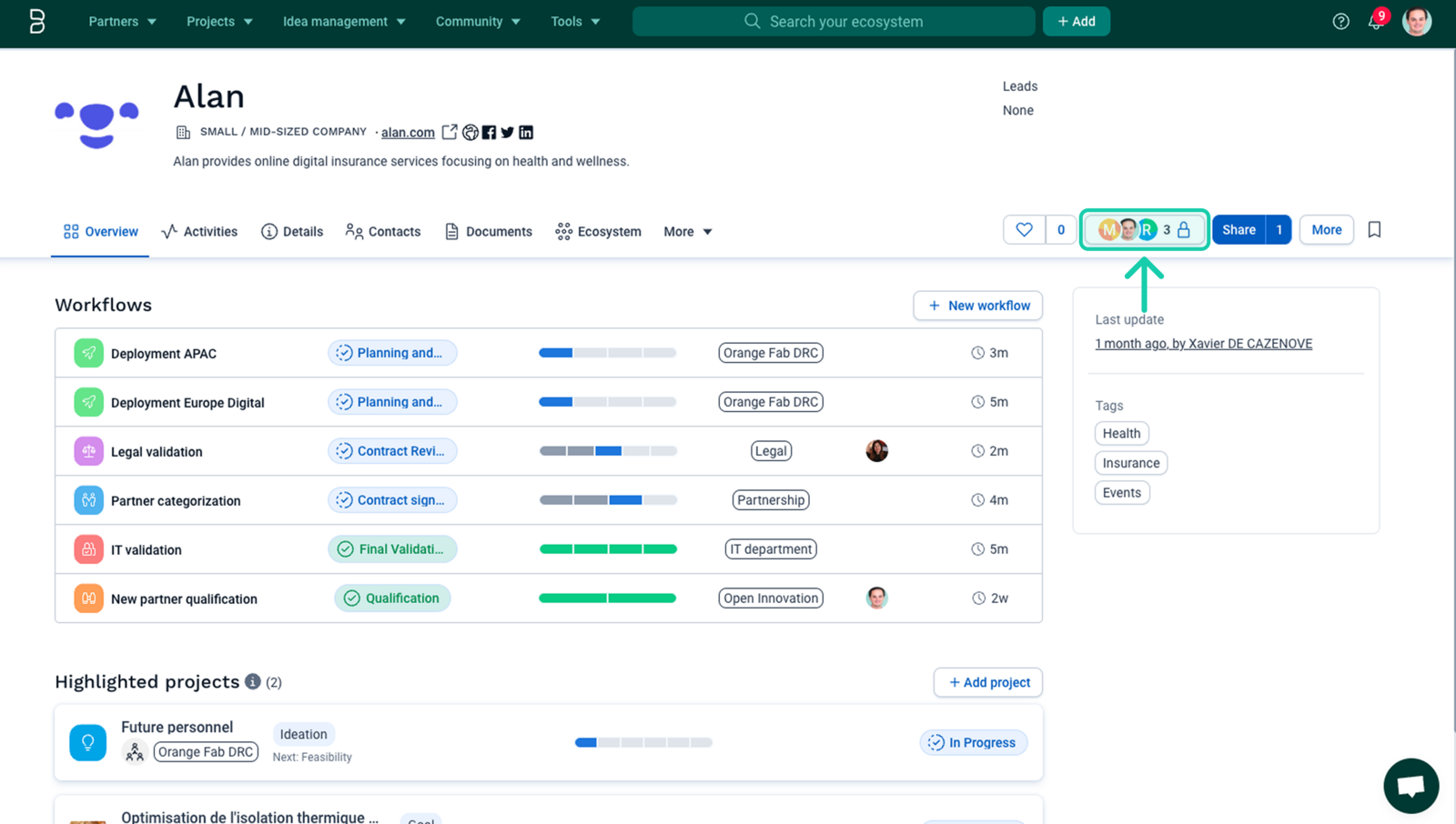
For each company or project that is referenced in your ecosystem. It is possible for the Administrators of these companies or projects to manage the access of each user or group, and to give them specific roles.
To get to the access management interface of a company or project, you can go to the Company or Project page > and click on the Manage Access button to the right of the Follow button.
Multiple page at once
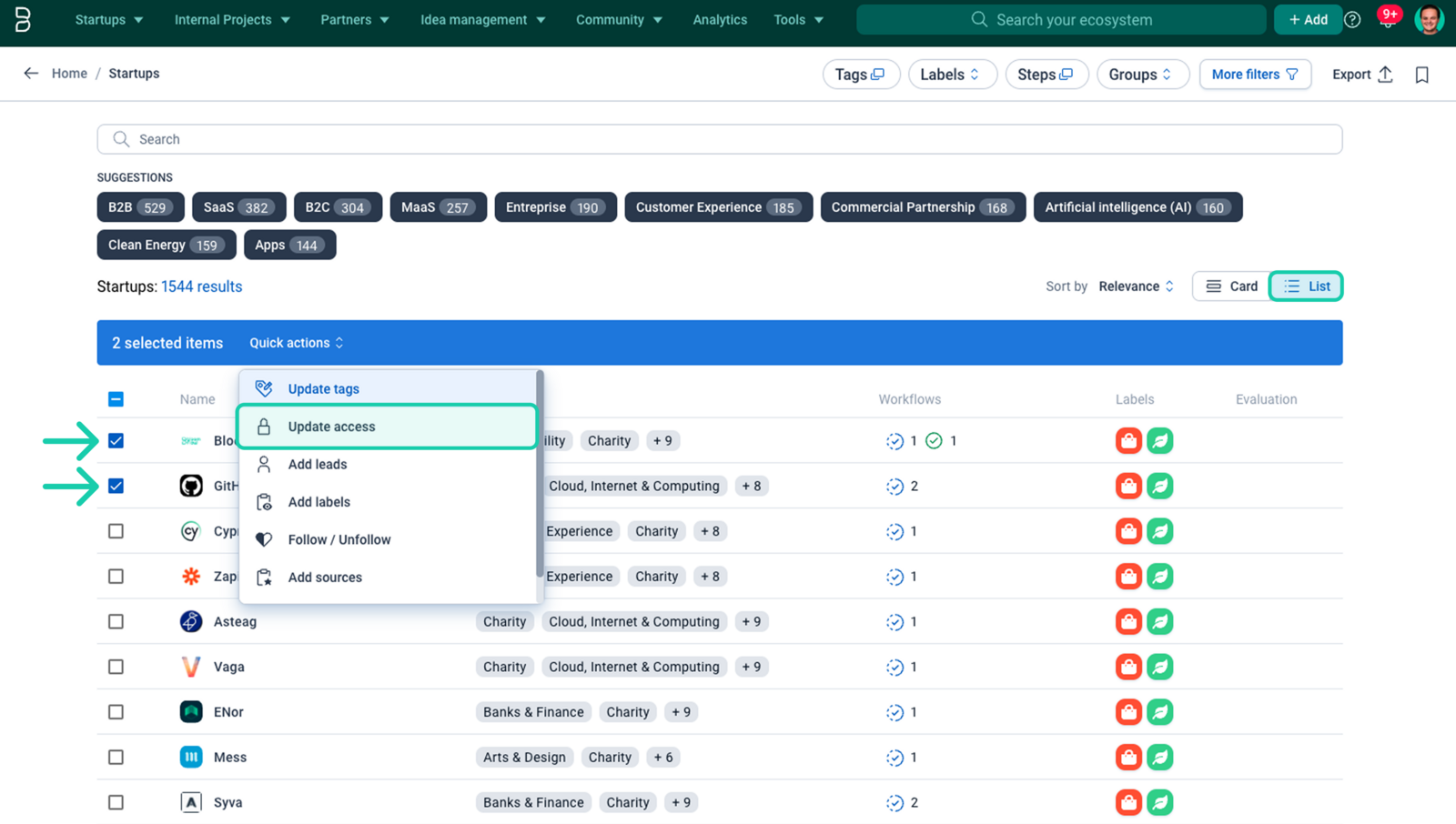
You can ensure that one or more users or groups of users can benefit from new accesses or roles on a defined number of companies/projects in your portfolio.
To access the bulk access update interface, go to the Productivity view of one of your portfolios by clicking on Portfolio > button List, then select the companies or projects you are interested in > click on Quick actions > Update access.
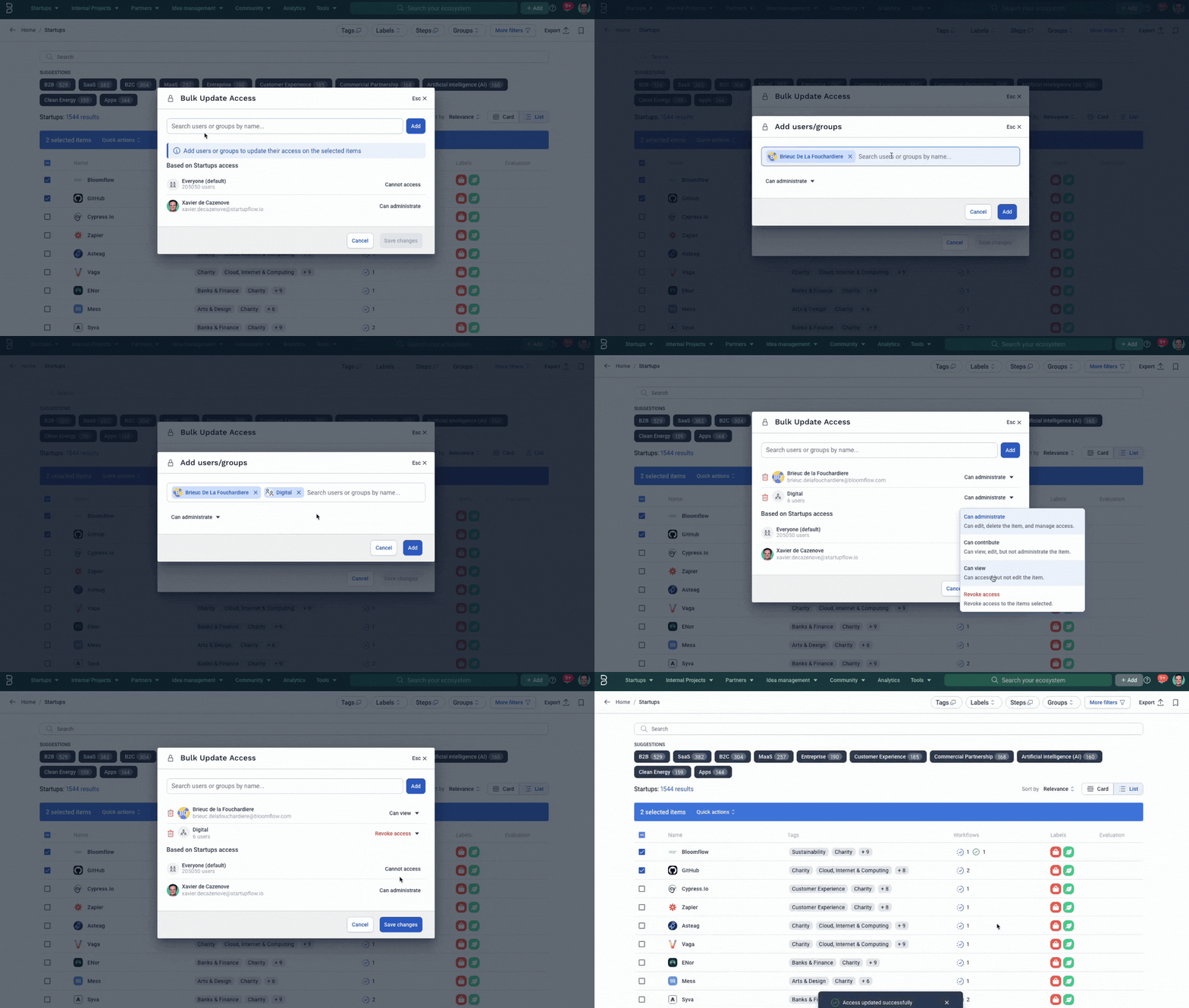
You will be taken to a modal where you can search for the users and user groups to whom you want to give, update or remove access to these companies or projects.
Ways to manage access
There are several different ways to manage access to the items of your platform depending on the level of granularity you want to have. Here is an overview of all of them.
Manage access for everyone
Everyone is the term we use to objectively represent the default role that all users of the platform have on an item. This means that if a person does not have a role defined for his/her user on an item, they will inherit the default role of the item.
For example, if I give the Can view role to Everyone on a specific company and click on the Save changes button, it means that all people on the platform will by default have the permissions affiliated with the Can view role.
To set the default role for your platform's items, you must be an Administrator of the item and be on the access management interface.
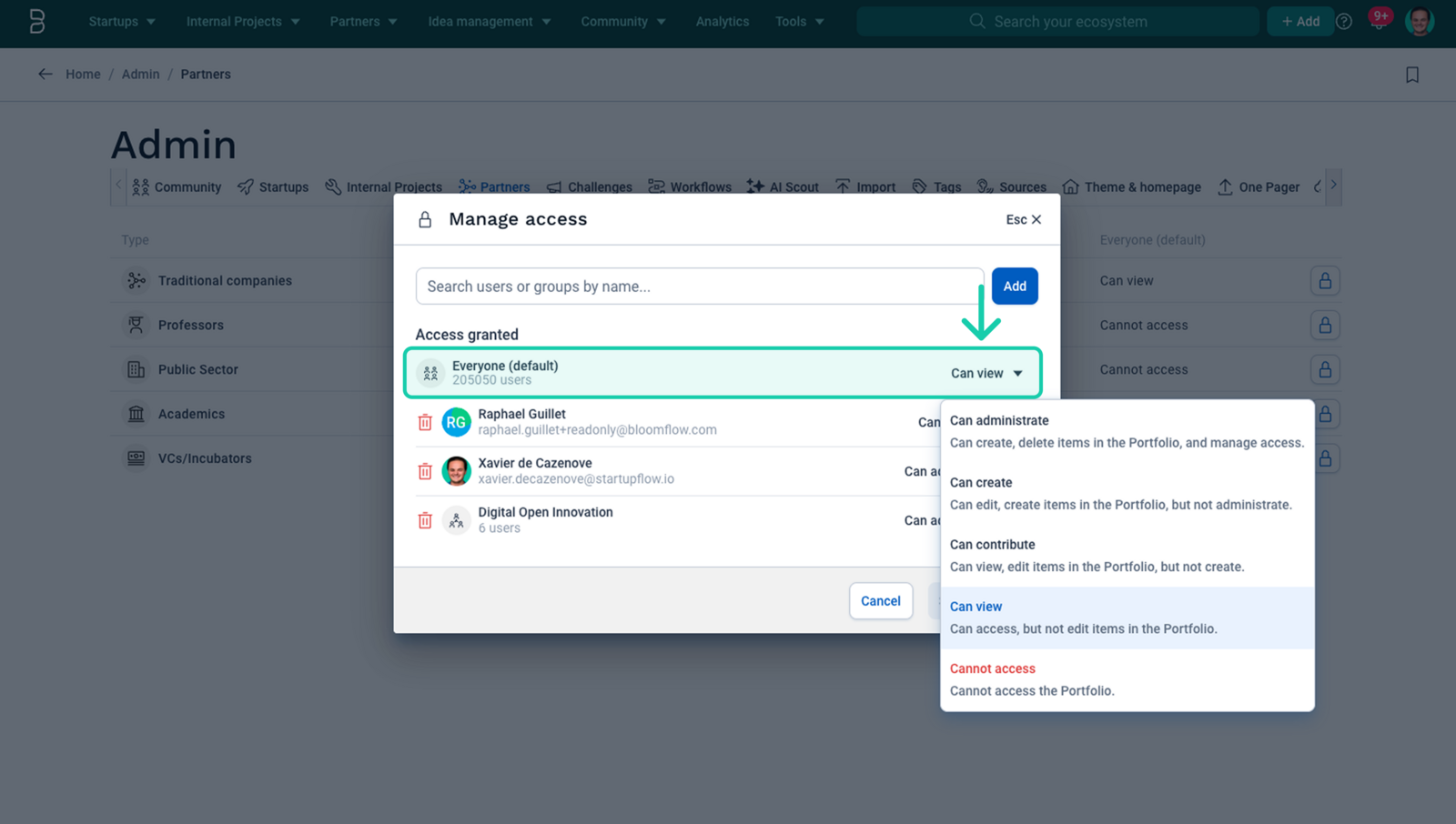
NOTE: This system of default rights means that every new user logging on to your platform will have the role defined on every element of the platform by default. Learn more more about invitations.
Give access to individual users
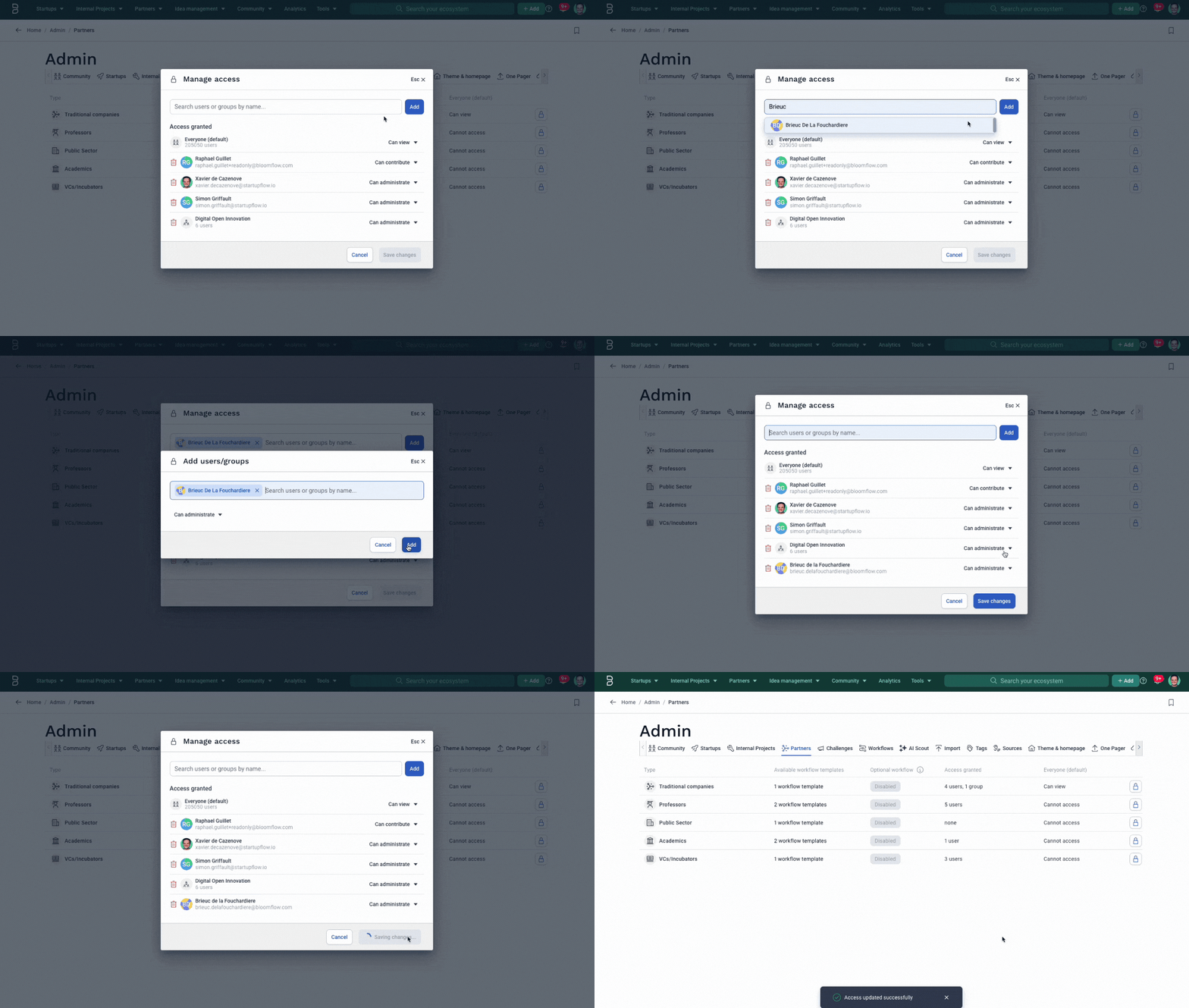
You will often need to give access to a specific page or portfolio to certain users of your platform. On each access management interface, you have the possibility to add new people to collaborate and to give them a role according to the permissions you want them to have.
You can update a person's role by simply using the role selector to the right of their username, and then click on the Save changes button.
You can also add new users with a specific role by using the search bar in the access management interface, select a role, and then click on the Save changes button.
Give access to groups
To help you manage access to different portfolios or pages on your platform more quickly, we have given you the ability to give access and assign roles to groups. Learn more about groups.
You can update the role of a team by simply using the role selector to the right of the group name, and then click on the Save changes button.
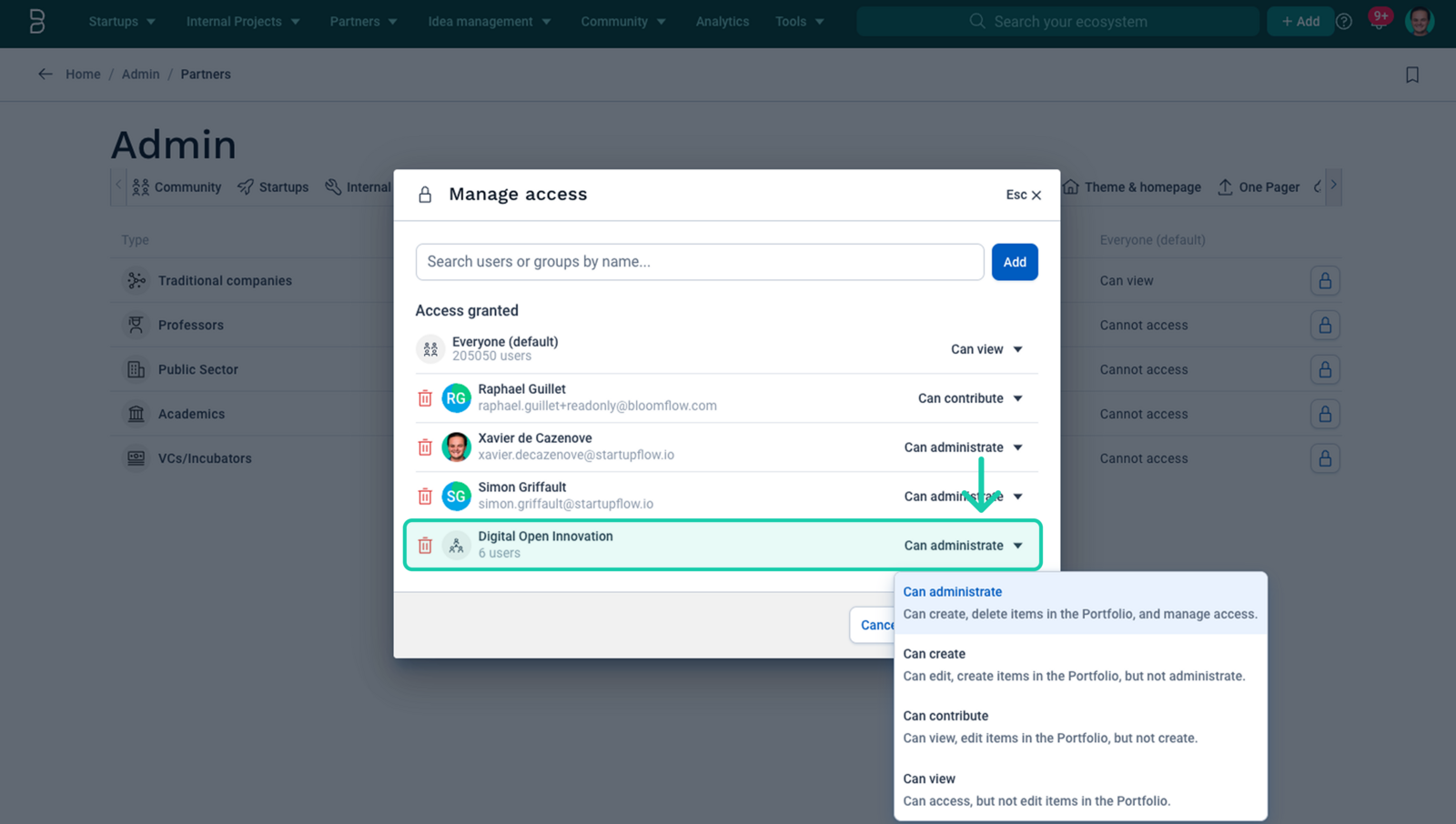
You can also add new groups with a specific role by using the search bar in the access management interface, select a role, and then click on the Save changes button.
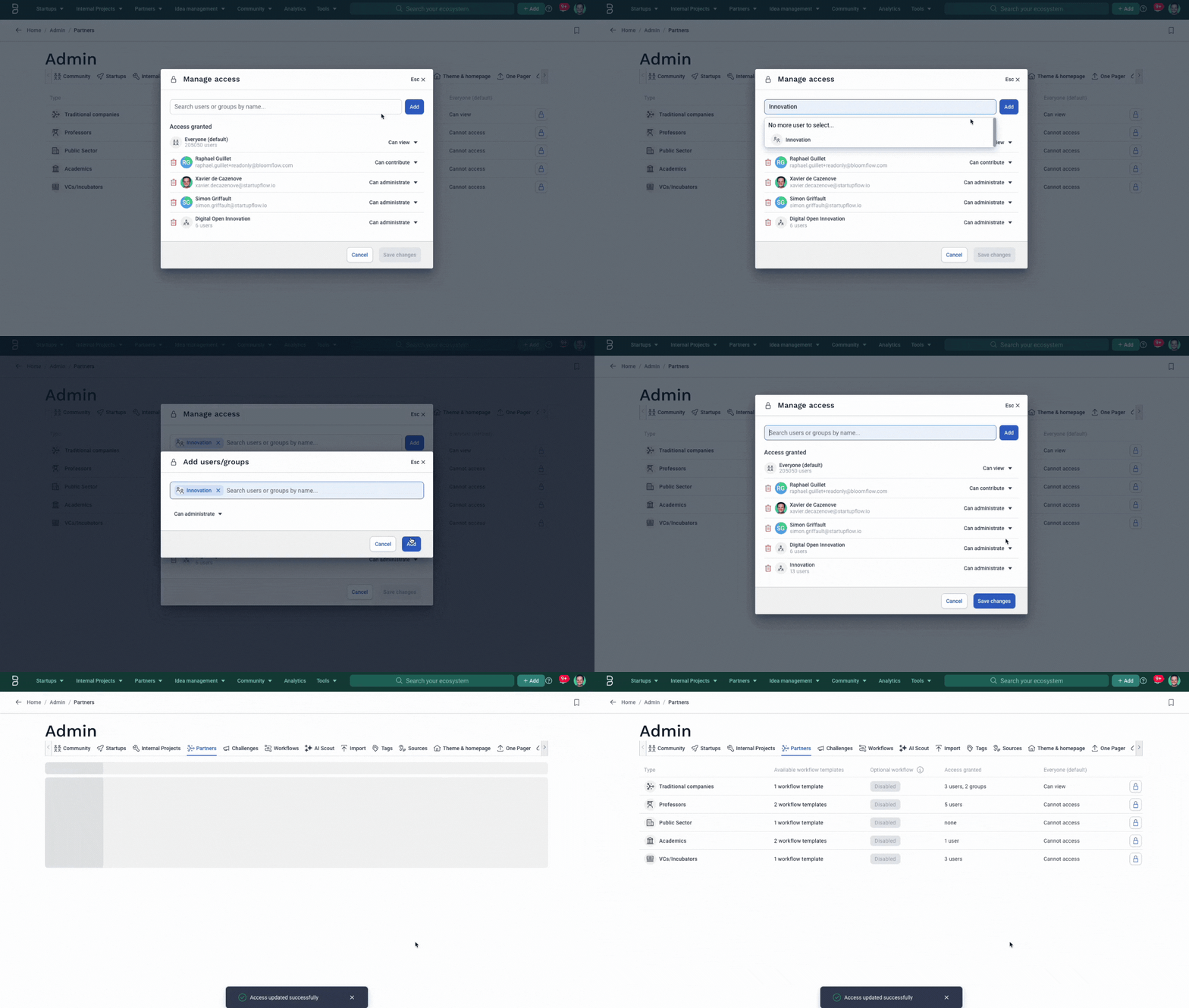
NOTE: if there is a conflict between a user's role and the role they have via a group, then the higher of the two roles will be taken into account.
Permissions levels
This is where Bloomflow's access management options become granular. For each user or group to whom you give access, you can assign a different permission level. This is often useful if:
- You want only a few people to be able to edit a page, while everyone else reads it.
- You want certain pages to be visible only to a specific team.
- You want to be the only administrator of certain pages.
Edit permissions
When clicking on manage access, you will see a right-hand dropdown menu next to each user’s name where you can select their role: Can administrate, Can create, Can contribute, and Can view.
| PORTFOLIO | Administrator | Creator | Contributor | Viewer | No access |
| Can administrate | ✅ | ❌ | ❌ | ❌ | ❌ |
| Can create | ✅ | ✅ | ❌ | ❌ | ❌ |
| Can edit | ✅ | ✅ | ✅ | ❌ | ❌ |
| Can share | ✅ | ✅ | ✅ | ✅ | ❌ |
| Can view | ✅ | ✅ | ✅ | ✅ | ❌ |
| PAGES | Administrator | Creator | Contributor | Viewer | No access |
| Can administrate | ✅ | ✅ | ❌ | ❌ | ❌ |
| Can edit | ✅ | ✅ | ✅ | ❌ | ❌ |
| Can share | ✅ | ✅ | ✅ | ✅ | ❌ |
| Can view | ✅ | ✅ | ✅ | ✅ | ❌ |
Expand & restrict permissions
- By default, a page inherits the same permissions as its portfolio (its parent). But you can extend the role of a user or group on a specific page if needed.
For example, in the screenshot below, everyone on the platform do not have access (thanks to the Cannot access defined at the portfolio level) to the **Bloomflow **startup, but we expanded the permissions for everyone to be able to view by defining Everyone to Can view role and we gave contribution permission to Simon by giving him the Can contribute role specifically to the **Bloomflow **startup.
- On a portfolio or page, you can restrict permissions to prevent users or groups from seeing or accessing their information.
For example, in the screenshot below, apart from Simon, Xavier and the Digital Open Innovation team, no one on the platform has access to the startup Bloomflow, as access to Everyone has been set to Cannot access.
Remove access
At any time, you can decide as the administrator of a page to remove access to a user or group. To do this, you can click on the trash icon on the left of a user or a group of users, and click on the Save changes button.
Understand who has access to what
As the management of roles and permissions on the platform allows for a certain level of granularity, it is not always obvious how permissions relate to each other and to the different items of the platform. Here are the specificities to keep in mind.
View mode
On your portfolio pages, it is always possible to see who has access regardless of your role. The only requirement is that you have access to the page.
To see who has access to the page, click on the Manage access button at the top right next to the Follow button.
NOTE: Only the administrators of the page can invite new users or groups or change their roles.
Principle of inheritance
Roles defined at the portfolio level have a strong parent <> child relationship with the pages contained within. This means that pages within a portfolio inherit by default the roles and therefore the permissions that have been defined at the portfolio level.
This is why you have a Based on [portfolio name] access section on the access management interface of your page. It shows you the list of users and groups who have a role on this item because they inherit from the one they have at the portfolio level.
FAQs
What are the questions that our clients are often asking themself?
If I am a user who has no access to a project or its portfolio, what would I see?
A user who has neither access to a portfolio, nor access to a particular project in that portfolio, will not see the name of the portfolio in the portfolios tabs of the platform and therefore will never know about its existence (not even the name) in the portfolio (even if one of the projects is linked via the ecosystem, for example, of a startup).
Am I able to see the list of people who has access to the project?
If you can’t see the name or the project, then you won’t be able to see who has access to the project either.
If a startup is linked to a project and a user has access to the startup but not to the project: what would be visible?
In this case, the user would only be able to view the startup. Nothing about the project would appear on their platform, either as a linked item or a search results.
Comments
0 comments
Article is closed for comments.