
Last updated March 2025
Users can easily be invited to your Bloomflow platform via the Admin Panel in just a few clicks! The functionality allows Platform administrators to invite one or multiple users at a time.
How does it work?
Inviting users
Platform administrators are able to invite one or more users to the platform from the admin panel in the Community tab, the button Invite Users/Groups.
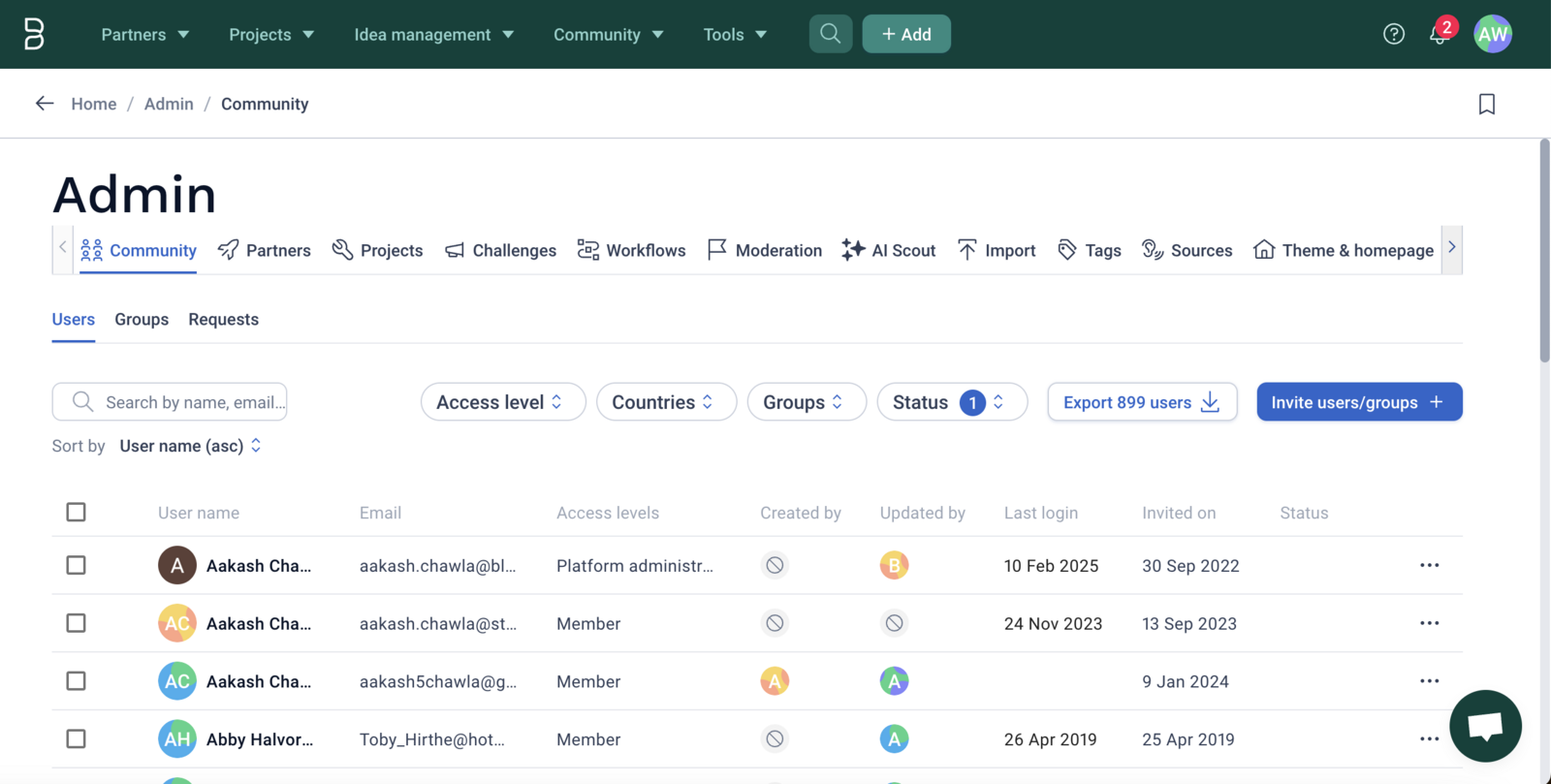
When inviting users, you can define the access level and which groups the user will be a part of.
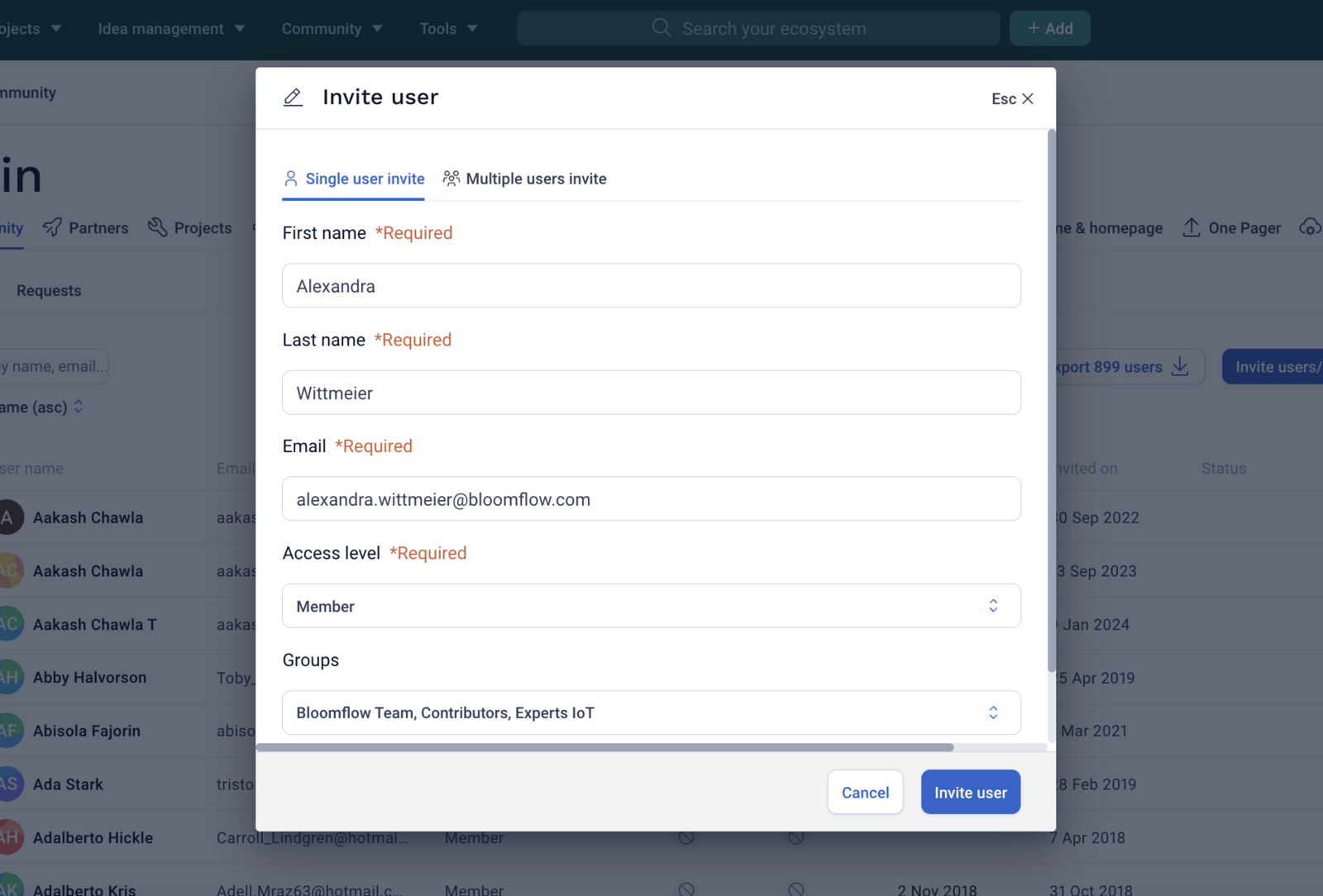
Similarly, you can invite multiple users at once, managing their access and groups. This allows platform administrators to manage rights and permissions proactively, ensuring that all users have the correct accesses from the very first login.
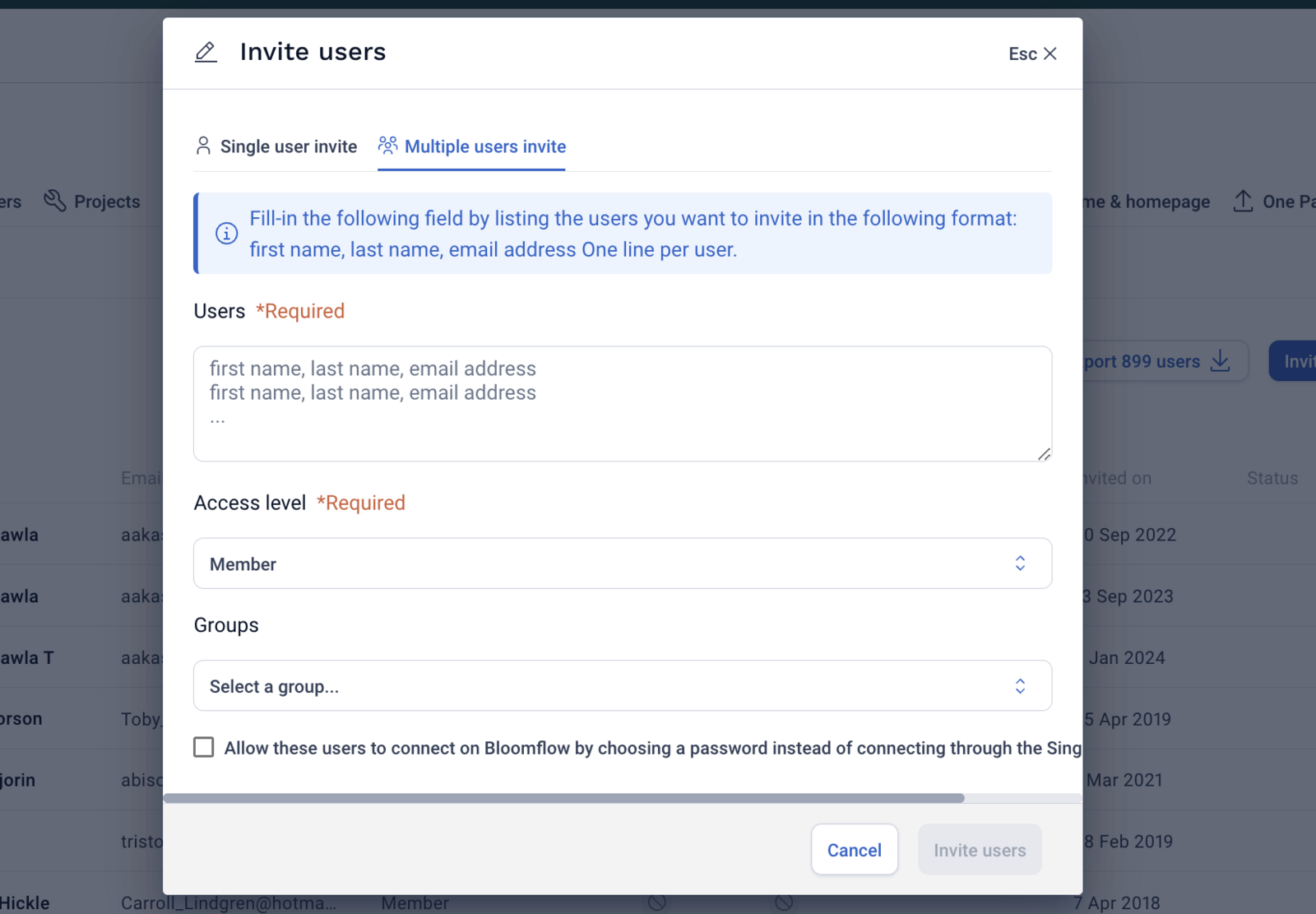
Once the invitation is sent, the user(s) will receive an email with a login link to create their account and start using Bloomflow!
Managing users with SSO
With the implementation of the SSO (Single Sign On), there become multiple ways of managing new users: Open to all or Invite only.
Open SSO versus Invite Only
Open SSO configuration allows the entire company to have access to the platform with a simple link, encouraging adoption and usage among all relevant departments and employees.
On the other hand, when the SSO is configured to be available on invite only, allowing them to have complete control over who has access to their Bloomflow platform.
To note: with the Open SSO, any link can be sent to an employee where they can access the platform. They will first be sent to the CGU validation page to complete the T&C and create their user profile. Once that is complete, the new user will be redirected to the URL destination.
What's next?
Managing existing users
In the Admin Panel, Platform Administrators can view their entire Bloomflow community in the respective tab. They can view and manage Users, Groups, and Requests, and refine their search using the available filters.
A user's profile is comprised of various components including their access level, countries, groups, and status which can also be used to filter through all users in the platform.
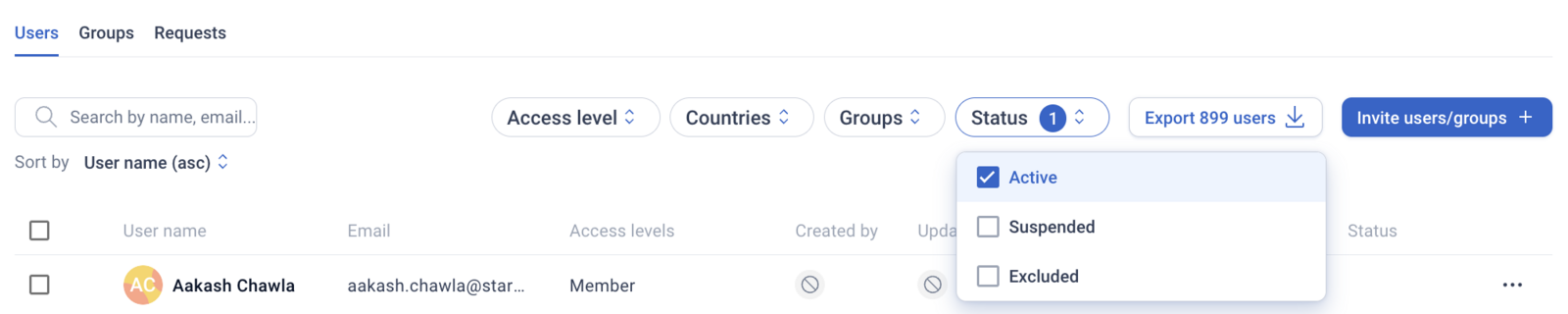
Platform Administrators is are also able to edit the user profile, suspend the user, and view their profile by selecting the three dots to the right of the user in the Admin Panel.
To note: In order to maintain regulated data in analytics and other impactful parts of the platform, it is not possible to completely delete a user from the platform.
Related articles:
To learn more about proactively assigning access rights to users, visit our article How Do I Manage Groups where you can learn how to create rule-based user groups.
To learn about managing rights and permissions on the platform, refer to our article on Managing Access and Collaboration.
Comments
0 comments
Please sign in to leave a comment.