
Last updated November 2025
Introduction to Tasks & Reminders
What are tasks?
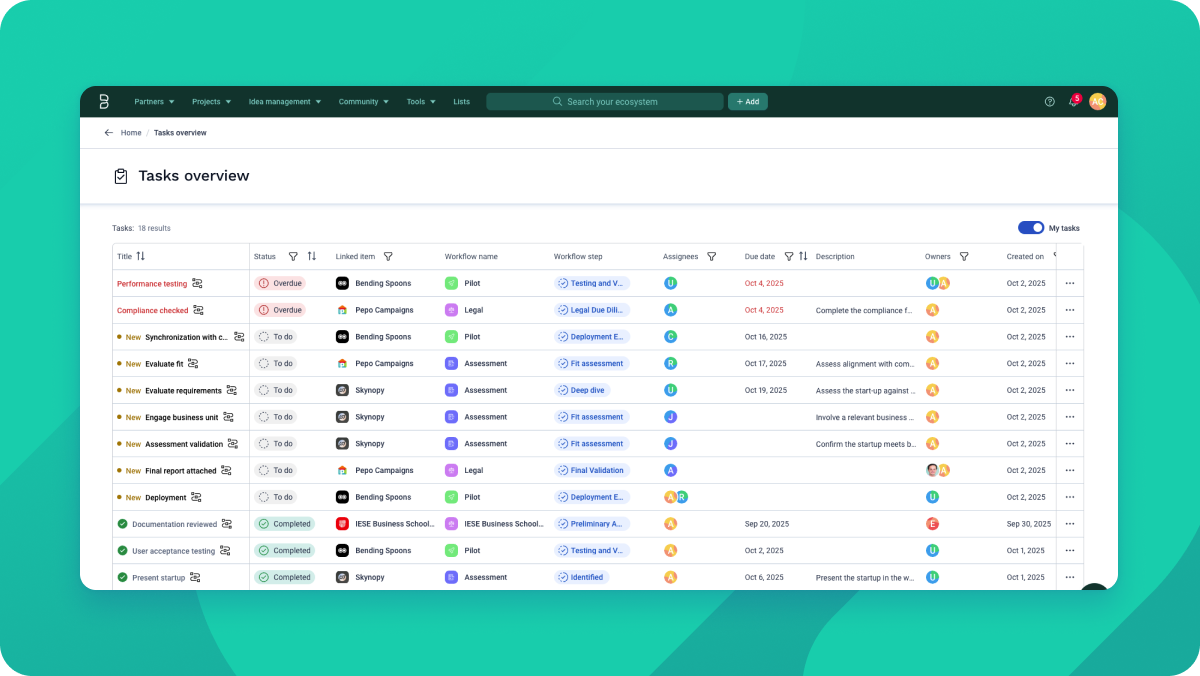
Tasks are embedded in workflow steps on Projects or Partners. They’re pre-configured with workflow templates and let you turn checklists within workflow steps more actionable. You’ll find Tasks overview in the Tools menu.
With Tasks & Reminders, you can:
- Assign one or more people to a task
- Set due dates with reminders
- Track progress centrally and request follow-ups
- Receive updates in-app and by email as a task participant
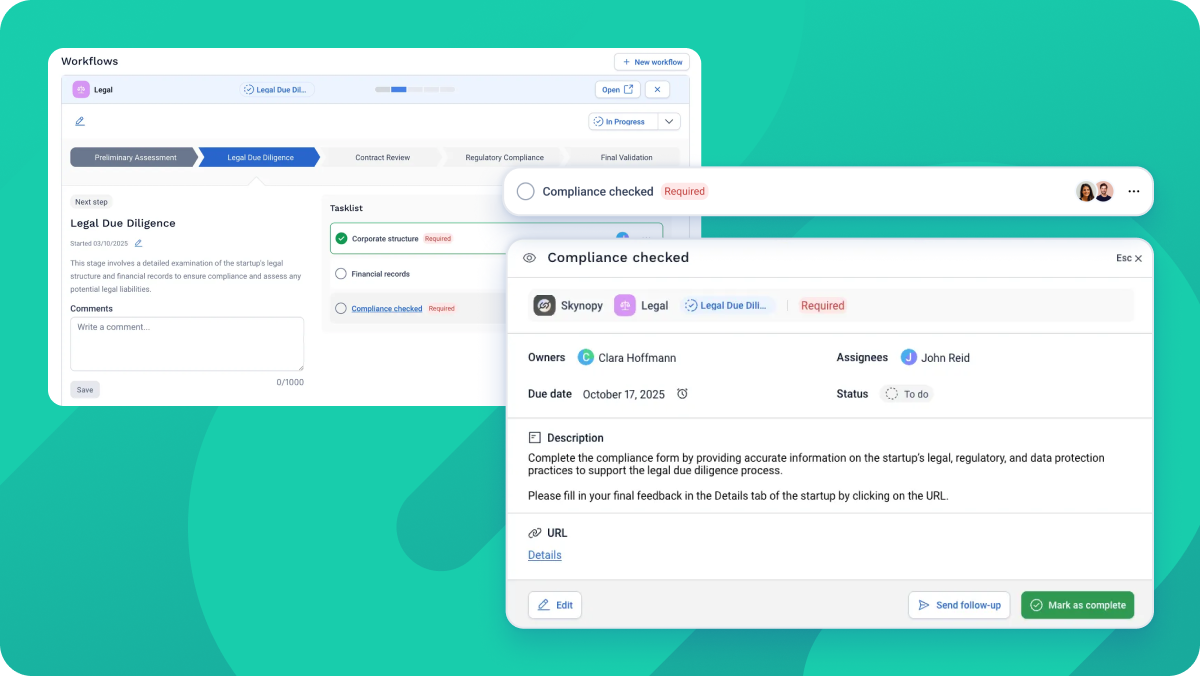
Who’s involved?
In the context of a task, following are the two roles:
- Owner — keeps the work moving, captures feedback, and is accountable for closure.
- Assignee — does the work and marks the task complete.
Below are common participant profiles you’ll meet on Bloomflow and how they typically map to these roles. (This is guidance, not a hard rule.)
Participant profile |
What they typically do |
Typical task role |
|---|---|---|
Innovation Managers / Program Leads |
Oversee innovation initiatives; initiate or delegate tasks; coordinate resources; ensure progress and track deliverables. |
Often Owner |
Project / Record Owners |
Run the day-to-day process on Bloomflow; keep data up-to-date; align stakeholders; assign tasks to self or others. |
Owner or Assignee |
Subject-matter experts (SMEs) |
Contribute specific expertise; visit Bloomflow less frequently; prefer clear expectations, deadlines, and reminders. |
Often Assignee |
How to use them?
- Assigning a task: Contributors on a workflow can add one or more assignees to complete a task. By default, the person who creates the task becomes the Owner. You can modify or add more Owners, if needed.
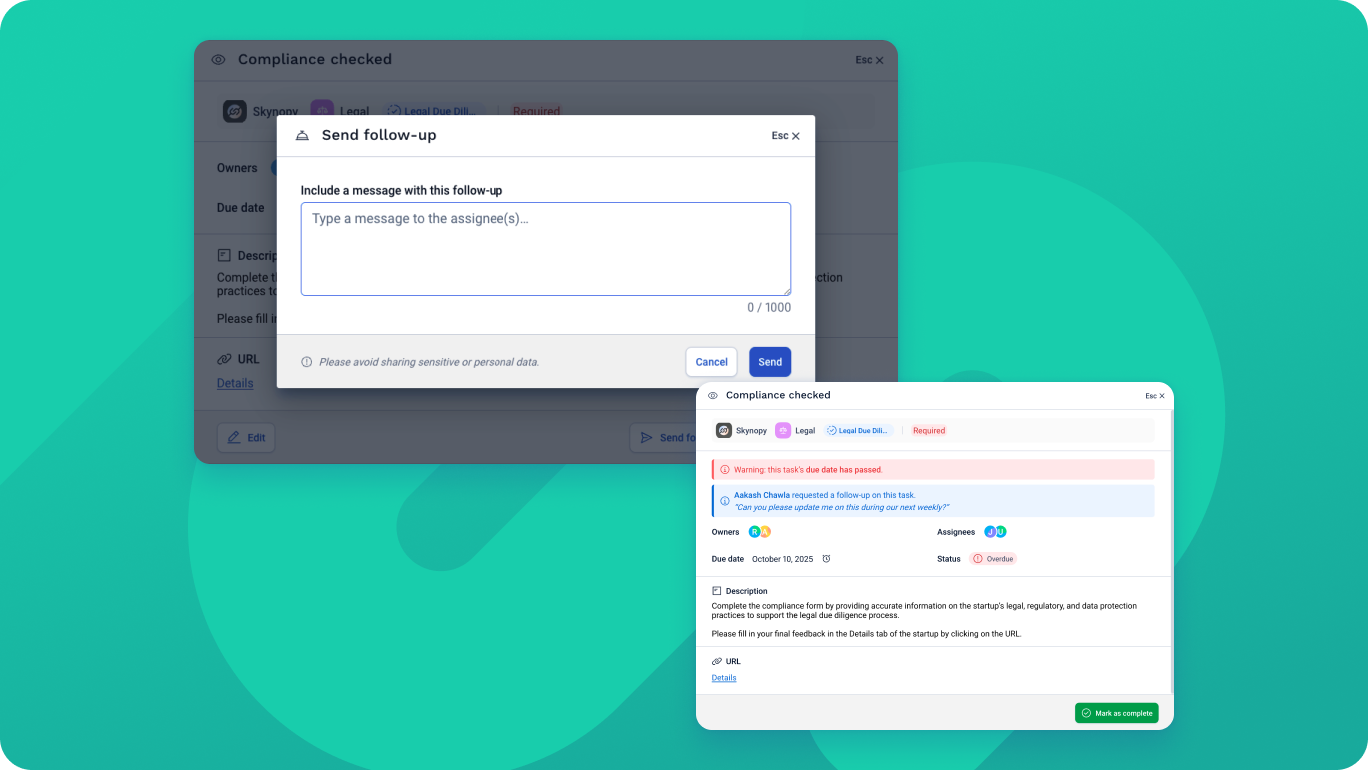
- Due dates, reminders & follow-ups: Owners can set due dates and schedule reminders, send manual follow-ups with a custom message, and copy task links to share via Slack or Teams. Assignees will also be able to receive in-app and email notifications, receive a reminder X days before due date (if set), and see the Owner’s follow-up message at the top of the task.
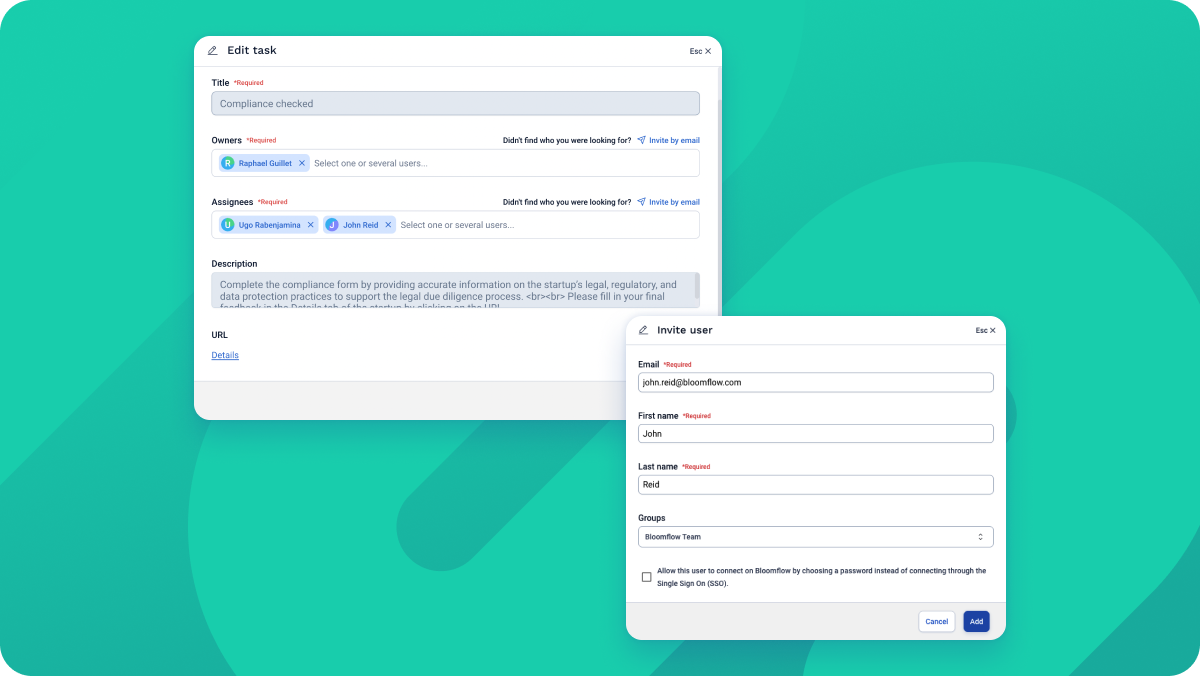
- Invite by email: You can invite colleagues who aren’t on Bloomflow yet directly from a task. (By default, only Platform Administrators can invite people who are not yet on Bloomflow. This can be reconfigured to allow any task editor to send invitations.)
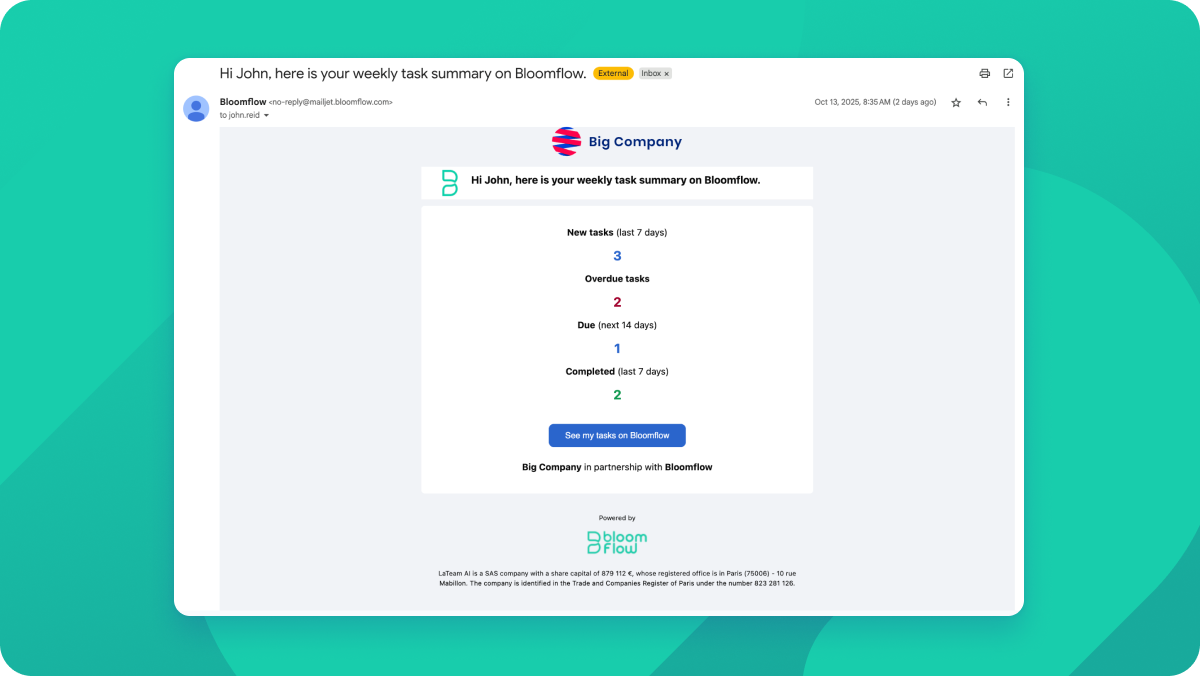
- Weekly task summary (email): Every Monday, task participants (Owners and Assignees) receive a digest if any of the following apply:
- New tasks added to them last week
- Tasks that are Overdue as of today
- Tasks completed last week
- Tasks due in the next two weeks
- Tasks overview: See a unified list of all tasks you’re involved in as an Owner or Assignee. Sort and filter by status, due date, assignees, or linked partner/project. Links from emails or in-app notifications open the task directly on this page.
Rights & Permissions
Tasks & actions - who can do what
Role |
What they can do |
Minimum rights (on workflow) |
|---|---|---|
Owner |
Assign or edit a task; mark complete or incomplete; send follow-ups |
Can contribute |
Assignee |
View a task; mark complete or incomplete |
Can view |
Workflow Admin |
All of the above; override edits; reassign |
Can administrate |
Tasks overview
- By default, each user only sees tasks where they are directly involved as an Owner or an Assignee.
- Users with Workflow Admin rights can switch between My tasks and All tasks in my portfolios using the toggle in Tasks overview. This helps admins track progress and spot bottlenecks across multiple projects.
Automatic access
If the task editor can administrate the related workflow, saving the task automatically grants collaborators the minimum required access. You’ll see inline guidance when permissions are missing so the right people get the right level of access.
To activate Tasks & Reminders on your platform, please reach out to support@bloomflow.com
FAQs
General
What’s the difference between Owner and Assignee?
- Owner: Tracks the task, can send follow-ups, and is accountable for closure.
- Assignee: Does the work and marks it Completed.
Why can’t I mark this task complete or incomplete right now?
You can’t update the status if:
- the workflow state isn’t In progress;
- it’s a mandatory task on a validated step (cannot be marked incomplete); or
- you’re not a task participant or you lack permissions to administrate the workflow.
What if multiple assignees are on one task—who completes it?
A task has a single status. Any participant with rights can mark it Completed. The completion is recorded once (who/when).
What if the “X days before due date” reminder falls in the past?
- We don’t send retroactive notifications if the reminder date is already before today.
- If the task is already Overdue, no reminder is sent; it appears as Overdue and will surface in the weekly digest. Owners can also send a manual follow-up.
What happens if I change a task’s due date after reminders were scheduled?
Future reminders are recalculated. Anything that would have triggered in the past is not backfilled. If you move the due date forward, an Overdue task returns to To do
Access & permissions
How do links to tasks behave if I don’t have access to the item?
Links to tasks always respect workflow access. If you lack rights, you’ll see an Access denied page. Reach out to the colleague who assigned the task to you. Only item admins can grant the minimum access required.
Does “Tasks overview” show every task in my workflows?
It lists workflow tasks you’re involved in (Owner/Assignee). It does not list tasks that were never assigned. They can be found and assigned via the item or workflow page.
Can admins see all tasks by default?
- Not everything by default. Admins see tasks where they’re Owner or Assignee, like any user.
- Workflow Admins (admins of workflow typologies) also see tasks in the workflow portfolios they administrate and can toggle between My tasks and All tasks in my portfolios.
Invitations
I invited someone by email but they still can’t see the task. Why?
Invites create an account, but task access is based on workflow access. Assignees need Can view; Owners need Can contribute. If the inviter can administrate the workflow, saving the task auto-grants minimum access; otherwise an admin must grant it.
Can we control who’s allowed to invite via tasks?
Yes. Choose between Platform Administrators only (default) or all task editors.
What happens to dormant invites?
If an invitee hasn’t joined within 90 days, their tasks are reassigned to the inviter and the dormant account is suspended. Champions receive a heads-up list before action.
Legacy tasks
What happens to workflow tasks created before this version?
- Everything is preserved: No data loss; original checked/unchecked status remains.
- Ownership set automatically: For any task that previously marked complete, the user who completed it is set as both Owner and Assignee; the completion date is kept.
- Visible in Tasks overview: The user who checked these tasks can access them in Tasks overview (subject to their current workflow access).
For any further questions, please reach out to support@bloomflow.com
Comments
0 comments
Please sign in to leave a comment.