
Last updated February 2025
Overview
Ready to go beyond the basics? This deep-dive into Bloomflow's Import feature unpacks its more capabilities and flows.
Whether you're managing permissions, working with templates, or interpreting validation reports, this document provides the detailed insights you need to unlock the full potential of Import.
Through the following sections, you’ll learn to:
- Administrate Import Permissions: Control who can perform imports and manage access on a typology level.
- Work with Templates: Customize, download and prepare templates tailored to your import needs.
- Understand Validation Reports: Analyze warnings, errors, and the outcomes of your attempted imports to ensure data integrity.
- Navigate Bloomflow Fields: Dive into field-level details for precise mapping and understanding update rules.
- work through some specifics via FAQs and Additional Information
Ideal for advanced users and administrators, this documentation ensures you’re equipped to handle even the most complex import cases with confidence.
1. Administrate Import Permissions
If you’re a platform administrator on Bloomflow, you’re likely familiar with managing portfolio access ( learn more here). Import permissions follow a similar approach.
By default, no user—including admins—has access to the Import feature. However, platform admins can configure import permissions in the Admin panel.
Steps to Assign Import Permissions
Import permissions can be granted at the typology level for individual users or groups.
- Go to Admin panel > Import *Tab **> Select either the *Partners or Projects tab.
- Click on the Manage access (🔒) icon next to the relevant typology.
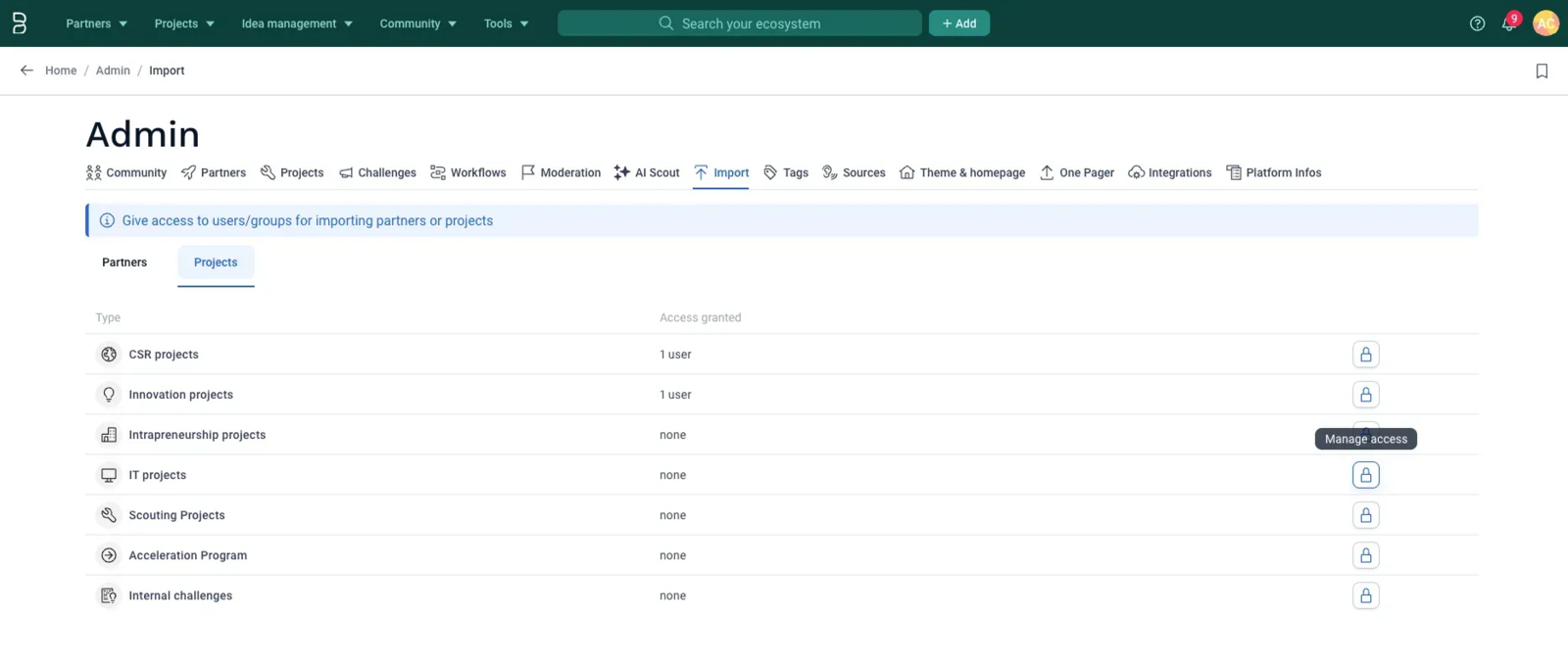
- In the pop-up:
- Add users and/or groups.
- Select one of the two permissions from the drop-down:
- Can import: Allows users to perform imports.
- Can administrate: Allows users to perform imports and also to manage import access for others.
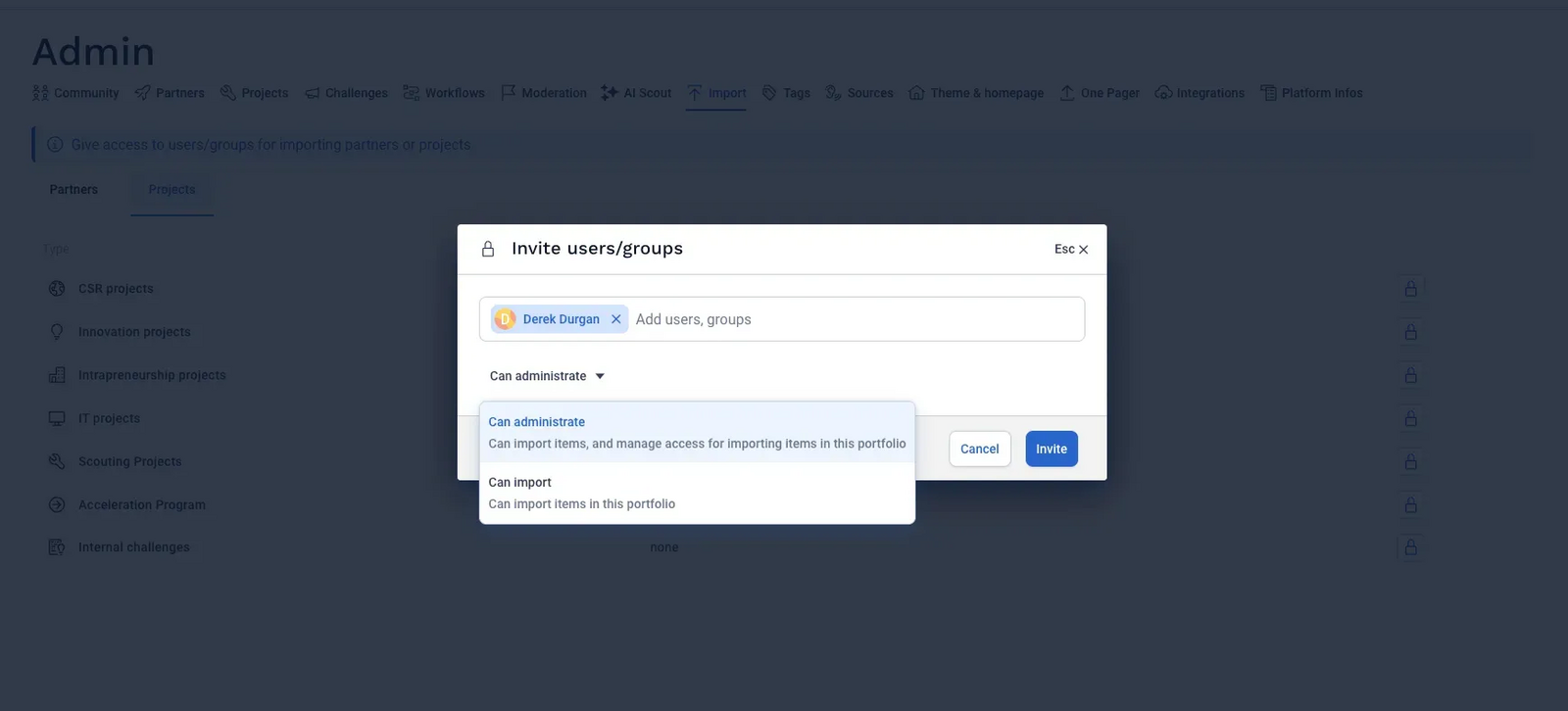
-
Click Invite to save changes.
Removing Import Access
To revoke access:
- Click the Manage access icon for the relevant typology.
- Use the drop-down next to the user/group and click Remove.
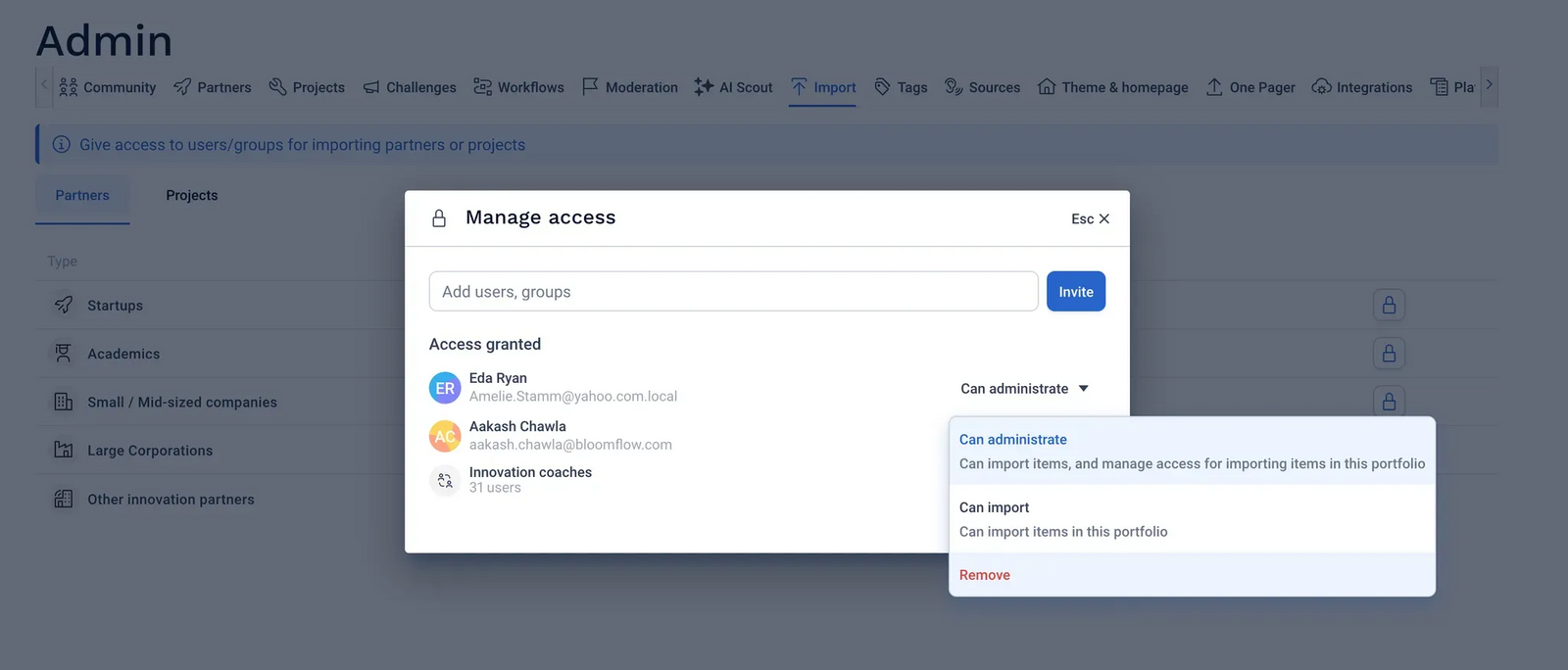
Quick Access for Managing Import Permissions
Import administrators can also directly access the Admin panel via the Manage access button located in the Import center (top-right corner).
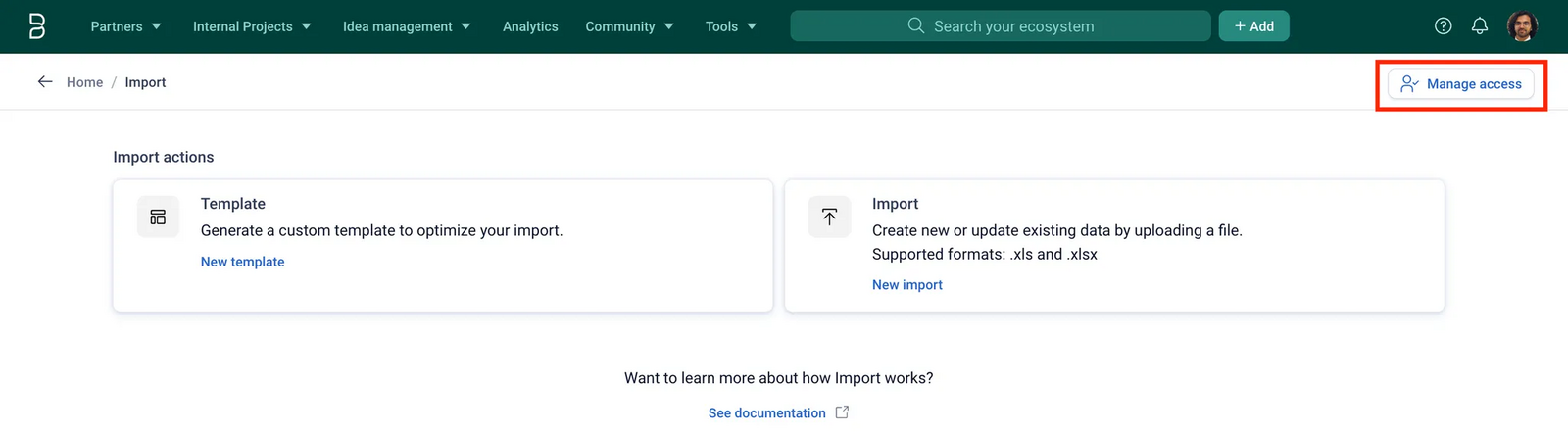
2. Work with Templates
Although recommended, the file used for import does not have to necessarily be based on the Bloomflow prescribed templates. Column names from any excel file can be mapped to Blooomflow fields during the import.
Customize and download a template
- Select Template from the Import actions
- Select the partner/project typology for which you want to download the template
Note that workflow information for partner typologies are stored in their own dedicated typologies. When you select any partner typology, you will find associated workflow fields as well.
- Select the fields that you want in the template.
- By default, only fields that are mandatory for Creating new items are selected.
- Mandatory fields cannot be deselected
- You can include fields for up to 5 internal and/or external contacts.
- Click on Download the template button. This should download a .xlsx file on your computer.
What a template contains
Once the excel file is downloaded, you will find the following sheets within it:
- Guidelines
- Indicates the typology for which the template is relevant
- Description of different sheets of the workbook
- Color coding of the Column names in the Template sheet
- General guidelines on how to fill in the template
- Template
- Row 1: Bloomflow fields as the names of columns that you selected at the time of customizing the template
- Row 2 & 3: Formatting instructions and examples for each field
- Appendices
- List of values predefined for certain fields (find below) specific to the selected typology to help build the import file and reduce the back and forth between import spreadsheet and Bloomflow
- Workflows (contains info about available Workflow Templates, Workflow States, Workflow Steps and Groups), Tags, Labels, Sources, Ecosystem, SIRET-related, Number of Employees, Geographic Markets, Custom Fields (Single and Multiple select)
Prepare a template for an import
- Fill in the data inside the Template sheet starting Row 4, corresponding to the Bloomflow fields that you wish to add for new items or update for exiting items.
- Use the Appendices to find the pre-configured available values for certain Bloomflow fields.
- At the time of import, the "Column names" that match the "Bloomflow fields" are automatically mapped. So, for a quicker import, we recommend NOT changing the column names within this sheet
- Make sure to DELETE the second and third rows and the first column before importing data onto Bloomflow.
- For a cleaner import, we also recommend deleting the columns that are irrelevant for the import, especially if they are not mandatory.
- Following date formats are supported: dd-mm-yyyy OR dd/mm/yyyy OR yyyy. We strongly advise you to have only one type of format for all the date-related fields for the entire import.
3. Understand Validation Report
What it contains and how to navigate
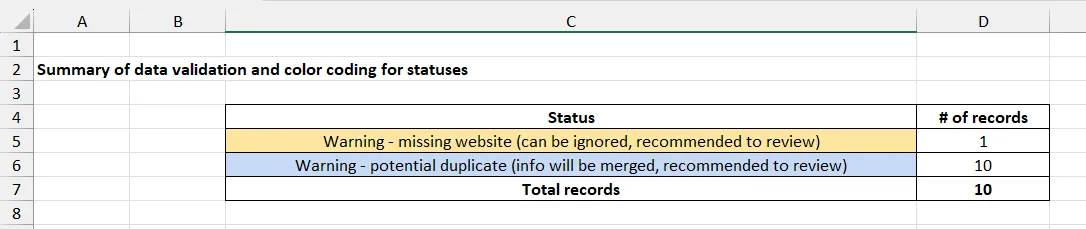
When warnings/errors are detected in the data you submit for an import, you have the option to download a Validation report, a detailed excel version of the Validation summary available on Bloomflow. This excel report comprises of the following sheets:
- Summary and Guidelines
- Description of different sheets of the workbook
- Validation summary (same as on Validation step on Bloomflow)
- Color code for warnings and errors
- Detailed validation report
- All the records from your import file - color coded based on their validation status (ready to be created/updated vs warnings vs errors). Particular cells within these records that need your attention are highlighted in the darker shade of the same color and also have a comment (by Bloomflow validator) to guide you in the right direction.
- Bloomflow Import Status and Bloomflow Comment - Use these two columns at the start of the sheet to filter the spreadsheet and efficiently review at the same time the errors and warnings of same type. Either delete these columns before using the same file to import OR select “Ignore for this import” on the Mapping step when reattempting the import.
- Column Names - are color coded too to highlight the columns that need your attention.
In case you used a non-templatized import file, the mapped Bloomflow fields are retained instead of the original Column names so that you can use the same file to import and don’t need to map them again.
- Validation failures: Quick summary of all the values that do not match the pre-defined values for certain fields. Use the appendices (the sheets that follow) along with this to review these errors.
Pro tip: Filter all the records that have an error of the same kind using one phrase at a time and use Replace function to efficiently substitute for the correct phrase. Use Ctrl + H on Windows and Cmd + H on Mac.
- Appendices: *Same as for Templates (see this section).*
Warnings and Errors: All you need to know
Warnings
Warnings can be ignored, but reviewing them is recommended.
- Missing Website: Crunchbase auto-enrichment won’t work (flagged only if Crunchbase enrichment is enabled during Mapping).
- Potential Matches on Bloomflow (Different Name): Having selected the “Update existing” option, if a match is detected based on the website, SIRET, or external contact information, review the potential match before importing.
IMPORTANT NOTE: Existing items are not updated unless a match is based on the Name.
- Duplicates in Excel (Same Name): For files where "Update existing" option is selected, duplicate records with the same Name are merged into one item during creation or updates.
- Duplicates in Excel (Different Name):
- Duplicate records with the same website, SIRET, or external contact information are flagged, but their information is not merged.
- Merging only happens for duplicates based on the Name.
- Other Warnings:
- Match on Workflow Name: If both the Item Name and Workflow Name match an existing entry, the Workflow information is updated.
- Workflow State: Workflow State must be "In Progress" in the import file or on Bloomflow to update any Workflow related properties other than Workflow State itself.
Errors
Errors must be reviewed and corrected to proceed.
- Missing Values: Mandatory fields or tag categories, source names/categories (if one is present), internal contact email (if first/last name present) and incomplete workflow or ecosystem information.
- Formatting Issues: Errors in dates, numbers, emails, URLs, phone numbers, etc.
- Unauthorized Values:
- Single-select fields: Workflow Template, Workflow State, Workflow Step, Source Names/Categories, Custom Fields.
- Multi-select fields (should be comma-separated): Groups, Tags, Labels, Geographic Markets, Ecosystem items, Custom fields (if any).
- Invalid SIREN/SIRET (Partners) or Start/End Dates (Projects).
- Mismatch between Source Name and Category.
- Other Errors:
To avoid issues with data quality, following cases are blocked while importing:
- Mismatch between Workflow Template and the one for an existing item.
- Multiple matches found for an item name or workflow name.
- Match on Name (i.e., item already exists) when selecting Create new.
-
Duplicates within the file when selecting Create new.
In case a record happens to have more than 1 errors and/or warnings, you’ll find comma seperated statuses/comments in the Bloomflow Import Status and Bloomflow Comment columns.

It is because of this reason that sometimes in the Summary and Guidelines sheet of the Validation report, the sum of number of records corresponding to each status might not equal the total number of records.
4. Navigate Bloomflow Fields
This section provides a table of all fields supported by Import, their field sets, and update behaviors. Use it as a quick reference to map data accurately and manage updates efficiently.
The table below uses the following legend for update behavior:
- Overwrite (O): Replaces the existing value of a field with the newly specified value. Commonly used for textual or single-select fields such as Workflow Step, Description, or Number of Employees.
- Append (A): Adds the newly specified value to the existing list of values for a field. Applicable to multi-select fields such as Tags, Labels, or Sources.
Bloomflow field |
Field Set |
Relevant to |
Update behaviour |
|---|---|---|---|
Name |
Basic info |
Partner, Project |
can not be changed (is the identifier) |
Website |
Basic info |
Partner |
O |
Pitch (short description) |
Basic info |
Partner, Project |
O |
SIREN |
Basic info |
Partner |
O |
SIRET |
Basic info |
Partner |
O |
Legal Name |
Basic info |
Partner |
O |
Workflow Template |
Workflow info |
Partner |
can not be changed |
Workflow Name |
Workflow info |
Partner |
can not be changed (is the identifier) |
Workflow State |
Workflow info |
Partner, Project |
O |
Workflow Step |
Workflow info |
Partner, Project |
O |
Workflow Step Comment |
Workflow info |
Partner, Project |
O |
Groups |
Workflow info |
Partner, Project |
A |
Tags |
Structural info |
Partner, Project |
A |
Labels |
Structural info |
Partner, Project |
A |
Source Name |
Structural info |
Partner |
A |
Source Category |
Structural info |
Partner |
A |
Ecosystem |
Structural info |
Partner, Project |
A |
Ecosystem Link Status |
Structural info |
Partner, Project |
A |
Description (long) |
Additional info |
Partner, Project |
O |
NAF/APE code |
Additional info |
Partner |
O |
Legal status |
Additional info |
Partner |
O |
Headquarters' location |
Additional info |
Partner |
O |
Creation date |
Additional info |
Partner |
O |
Number of employees |
Additional info |
Partner |
O |
Video Link |
Additional info |
Partner, Project |
A |
Expected benefits |
Additional info |
Project |
O |
Followed KPIs |
Additional info |
Project |
O |
Project start date |
Additional info |
Project |
O |
Project end date |
Additional info |
Project |
O |
Notes |
Additional info |
Partner, Project |
O |
Internal contact: First name |
Internal contacts |
Partner, Project |
identifier |
Internal contact: Last name |
Internal contacts |
Partner, Project |
identifier |
Internal contact: email |
Internal contacts |
Partner, Project |
O |
Internal contact: Role |
Internal contacts |
Partner, Project |
O |
Internal contact: Referent |
Internal contacts |
Partner, Project |
O |
External Contact: First name |
External contacts |
Partner |
identifier |
External Contact: Last name |
External contacts |
Partner |
identifier |
External Contact: email address |
External contacts |
Partner |
identifier |
External Contact: Phone number |
External contacts |
Partner |
O |
External Contact: Role |
External contacts |
Partner |
O |
External Contact: Linkedin Profile |
External contacts |
Partner |
O |
Addressed pain point, Business Opportunity |
Internal qualification |
Partner |
O |
Sustainability Assessment, Success Proofs |
Internal qualification |
Partner |
O |
Potential Risks, Key Differentiators |
Internal qualification |
Partner |
O |
Geographic Markets, Competitors, Business Model |
Internal qualification |
Partner |
O |
Custom Field Text or Single Select |
Custom fields |
Partner, Project |
O |
Custom Field Multi Select |
Custom fields |
Partner, Project |
A |
Custom Field Date or URL |
Custom fields |
Partner, Project |
O |
5. FAQs and Additional Information
What are some tips (and tricks) for successful imports?
- Avoid having empty rows or columns in the sheet with your data
- Ensure the Column names are in the first row of the selected sheet
- On the Mapping step, you can quickly locate Column names that weren’t automatically mapped by using Ctrl/Command + F and searching for “Not mapped yet” / “Pas encore mappé” / “Noch nicht gemappt”. This is especially useful when using a non-templatized excel for import.
How are matches on Bloomflow OR duplicates within file detected for the records I want to import and how are they treated?
- Via import, matches on Bloomflow or duplicates within file are found based on Name, Website, SIRET and External contact info of items (not case sensitive).
- For updating an existing item, Name on the record must match the Name of the item on Bloomflow. Matches based on other fields act just as warnings for you to review the records - no information will be merged in these cases.
- See following tables for more details on what happens for different operations (Create new VS Update existing) when a match is detected on Bloomflow or a duplicate is detected within file based on a certain field.
Match on Bloomflow based on ⬇️ |
Create new |
Update existing |
|---|---|---|
Name |
Error (existing items cannot be updated with this option) |
Ready to be updated |
Website / SIRET / External contact info |
Warning (information will not be merged with existing item, a new item will be created) |
Warning (information will not be merged with existing item, a new item will be created) |
Duplicates within file based on ⬇️ |
Create new |
Update existing |
|---|---|---|
Name |
Error (multiple records with same name cannot be processed with this option) |
Warning (information will be merged for records and existing item will be updated/ a new item will be created) |
Website / SIRET / External contact info |
Warning (information will not be merged and multiple items will be created) |
Warning (information will not be merged and multiple items will be created/updated) |
Can I import/update information on partners with multiple workflows?
Yes.
- To create a new partner with multiple workflows, you will need multiple records in your file with same Name of the partner. Make sure that Workflow Names are unique across these records. Then use the ”Update existing” option when setting up your import.
- To add new workflow/s to existing partner, add a record for each workflow with same Name as the partner on Bloomflow. Make sure that Workflow Names are unique and do not match the ones present on Bloomflow for the partner. Then use the ”Update existing” option when setting up your import.
- To update existing workflow/s for an existing partner, add a record for each workflow with same Name and same Workflow Name as the partner on Bloomflow. Then use the ”Update existing” option when setting up your import.
Note that the Create new option does not let you update existing items OR have multiple records within your file with same name. This is why Update existing option is prescribed for such use cases.
- Things to keep in mind for updating workflows:
- Workflow Name and Template: Cannot be updated for existing workflows. Workflow Name, along with the partner Name, is used to identify existing workflows. Workflow Names within a partner must be unique.
- Once a workflow is identified as an existing workflow, the following updates are applied if the respective fields are specified:
- Workflow State: Always updated to the new state, regardless of its current value. A workflow must reach its final step to be marked as completed.
- Workflow Step, Step Comment, and Groups: Updated only if the Workflow State (either on Bloomflow or in the Excel file) is In Progress. If the workflow progresses forward, the new step is added. If the workflow moves backward, the option Keep steps and tasks history is applied, and the new step is added on top of the existing ones.
- Learn more about specific use cases:
- Importing partners with multiple workflows or without workflows
- Updating workflow info for partners in bulk
- Adding new workflows to existing partners
Can I import multiple items with same names?
- Not possible via import within one typology.
- You CANNOT create a new item or update one of the existing items if there are more than 1 items with same name on the platform (within the target typology or elsewhere).
- However, if an item by same name exists in Typology A, you can create 1 (and only 1) more new item by the same name in any other typology. Note that we highly discourage having multiple instances of same item across your platform.
What is the affect of enabling/disabling Crunchbase automatic updates on the mapping step of import?
- This option is only applicable for partner typologies and only available for an entire batch of import (not on item level).
- When creating new items (either via Create new OR Update existing operation), setting this option to
- YES ⇒ company info will be enriched via Crunchbase (only if the website is provided and it matches with the company website on Crunchbase) right after the creation. Note that future automatic updates will also be enabled.
- NO ⇒ no supplementary information (including the logo) is added from Crunchabse. Automatic updates do not get enabled - this can be turned ON only by manually using “Check for updates.” (See documentation here.)
- When updating existing items, setting the option to YES or NO does not change the pre-existing settings for individual items.
- It is mandatory to have mapped Website field to enable the Crunchbase automatic updates.
Why do I have a problem using a file for import that I prepared using LibreOffice, OnlyOffice etc.?
For now, we only support Microsoft Excel and Google Sheets. Using these tools to open the files from other spreadsheet software and saving them as Excel-compatible files (.xlsx/.xls) can help sometimes.
How can I import the values (of tags, labels, ecosystem elements etc.) that have a “,” (comma) in their names and the validation report flags them as error?
- If the value you are importing contains a comma (','), ex :
Fashion, Apparel & Accessoriesfor a tag (or any other multi-select field - default or custom), replace commas (',') by semicolon (';') in the import file. Worry not, these values will be imported with commas on the platform. - For single-select fields, no treatment required.
Can I import more than 5 contacts (internal or external) for a given item?
No, but yes. You can specify only up to 5 contacts in one excel record. In the rare case where you need to add more than 5 contacts, we recommend either
- doing so via multiple imports, OR
- adding multiple records of the same item by same Name and using the “Update existing” option while setting up your import.
How long does it take to process an import?
The system processes imports in scheduled intervals of 30 minutes. Once triggered, the time required for an import depends on the number of records and the presence of duplicates in the file. With no duplicates, records are imported in batches of 5. However, with duplicates, each record is imported sequentially, increasing processing time.
As a rule-of-thumb, imports for large files (e.g., 2000 records, the maximum allowed) may take up to 12–15 minutes. So, it might take up to 45 minutes for the entire process to complete.
Comments
0 comments
Please sign in to leave a comment.